Skill Selection Optimisation
This feature is currently in preview. Its behaviour and interface may change.
Introduction
Every skill you add to an agent is offered to the model on each execution, together with its description and parameters. With a handful of skills that is fine, but agents that combine many skills, or MCP servers that expose dozens of tools, end up sending a large tool list on every call, even when the user's message only needs one or two of them.
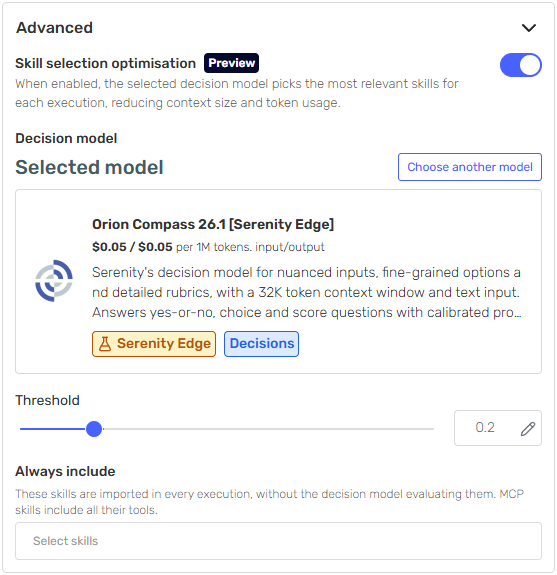
Skill Selection Optimisation solves this. Before the agent answers, a decision model reviews the conversation and picks the skills that are relevant for that execution. The agent then works with that smaller set only.
Benefits
- Lower token usage and cost: skills that aren't needed are left out of the request, so each call carries fewer input tokens.
- Smaller context: more of the model's context window is left for the conversation, knowledge and instructions. Agents with large tool sets can stay within the model's Max Total Tokens instead of failing with a "no room for the user message" error.
- More reliable tool choice: with fewer, more relevant tools to choose from, the agent is less likely to call the wrong one.
- Scales with your agent: add more skills or larger MCP servers without every execution paying for all of them.
- Safe by default: if the selection can't be completed, the agent runs with all its skills, exactly as it would without the feature.
When to use it
Enable it on agents that have many skills, or skills that expose many tools (such as MCP servers), where any single request usually needs only a few of them.
For an agent with two or three skills that are used on most requests, there is little to save, and you can leave it disabled.
It is available for Assistant, Copilot, Chat Completion and Activity agents.
Example
An Assistant agent has three skills and a Remote MCP server that exposes many tools. A user asks whether an order is eligible for a refund, which only needs one skill. The same question was sent with the optimisation off and then on:
| Input tokens | Total tokens | |
|---|---|---|
| Optimisation off | 6,500 | 6,551 |
| Optimisation on | 306 | 362 |
With the optimisation on, the MCP tools were left out of the request, cutting the input tokens by about 95%, and the cost of the execution with them. The agent answered the question correctly in both cases.

Your savings depend on how many skills the agent has and how many of them a typical request needs.
Enable it on your agent
-
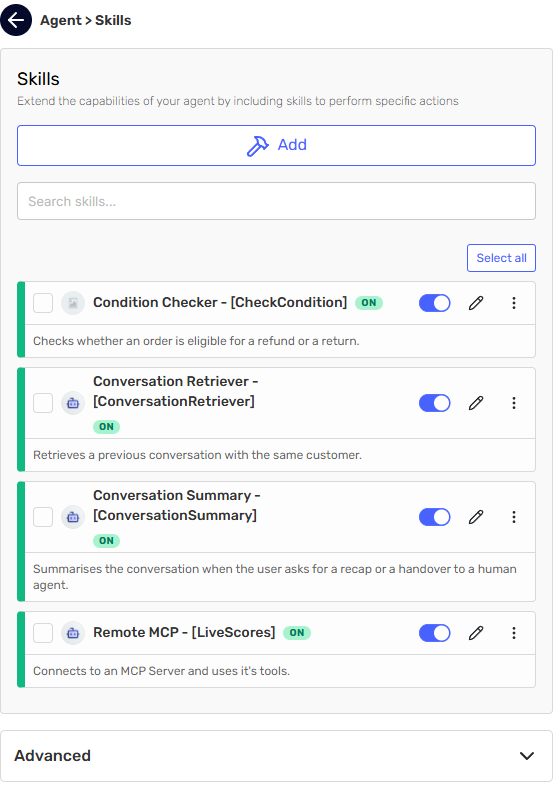
Open your agent in the Agent Design Studio and go to the Skills tab.
-
Below the skills list, expand the Advanced section.
-
Turn on Skill selection optimisation.
-
Configure the settings described below.
-
Save or Publish the agent.
Settings
| Setting | Description |
|---|---|
| Decision model | The model that decides which skills each execution needs. The platform's default decision model is selected for you; use Choose another model to pick a different one from the models available for decisions. |
| Threshold | The minimum relevance, from 0 to 1, a skill needs to be included. Higher values include fewer skills; 0 includes all of them. The default is 0.2. |
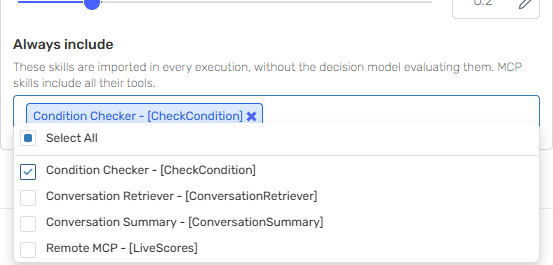
| Always include | Skills that are included in every execution, without being evaluated. For an MCP skill, all its tools are included. |
Choosing a threshold
Start with the default (0.2) and adjust it based on how your agent behaves:
- If the agent sometimes misses a skill it needed, lower the threshold, or add that skill to Always include.
- If the agent still receives many skills it doesn't use, raise the threshold.
Use the Agent Quality Studio to compare results before and after a change.
Always include
Use Always include for skills the agent must be able to call on every turn, regardless of what the user writes. For example, a skill that logs every interaction, or one your system definition tells the agent to call before answering.
Built-in capabilities such as Knowledge, agent and user memory, datasets and conversation context are always available to the agent and are never left out by the selection. You don't need to add them to Always include.
What to expect at execution time
- Each execution gets its own selection. The skills chosen depend on the current message and the recent conversation, so a skill left out on one turn can be included on the next.
- The agent knows when something is missing. In Assistant, Copilot and Chat Completion agents, when skills are left out, the agent is told that some capabilities aren't available in that turn, so it tells the user instead of improvising an answer.
- No skills are lost on failure. If the selection fails or takes too long, the execution continues with all of the agent's skills.
- Approvals and choices keep their skills. When an execution resumes after a skill approval or a user choice, the selection is skipped and the agent runs with all its skills, so the pending skill is always available.
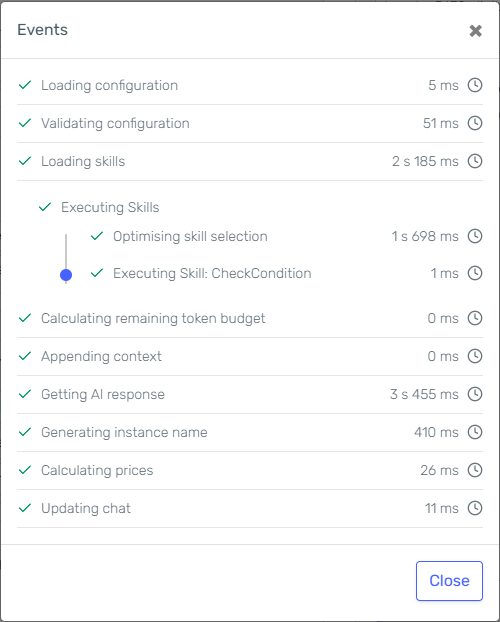
- The answer takes slightly longer to start. The selection runs before the agent answers. In our tests it took around two seconds.
- The decision model has its own cost. Each selection is a call to the decision model, which is included in the execution's cost. With a low-cost decision model and an agent with many skills, the tokens saved are usually much higher than the cost of the selection.
Check it in the preview
Send a message from the Preview in the Agent Design Studio and select View more under the response. The Events panel shows an Optimising skill selection step, with how long it took, before the agent's response.
To measure the savings, compare the Input tokens of executions before and after enabling the optimisation in the agent's instances.
Configure it through the API
When you create or update an agent with the Agent Designer endpoints (for example POST /api/v2/agent/assistant or PUT /api/v2/agent/assistant/{agentCode}), send the settings in skillsAdvancedSettings.selectionOptimization:
{
  "skills": [
    { "code": "web-search", "...": "..." },
    { "code": "crm-mcp", "...": "..." },
    { "code": "audit-log", "...": "..." }
  ],
  "skillsAdvancedSettings": {
    "selectionOptimization": {
      "isEnabled": true,
      "modelCode": "YOUR_DECISION_MODEL_CODE",
      "vendor": "YOUR_DECISION_MODEL_VENDOR",
      "threshold": 0.2,
      "alwaysIncludedSkills": ["audit-log"]
    }
  }
}
| Field | Type | Description |
|---|---|---|
isEnabled | boolean | Turns the optimisation on or off. |
aiModelId | string (GUID) | The decision model's ID. Alternatively, send modelCode and vendor together. If no model is sent, the platform's default decision model is used. |
modelCode / vendor | string | The decision model's code and vendor. Must be sent together. |
threshold | number | Minimum relevance between 0 and 1. If omitted, the default (0.2) is used. |
alwaysIncludedSkills | string[] | Codes of the agent's skills to include in every execution. Each code must be one of the agent's skills. |
If skillsAdvancedSettings is omitted when creating or replacing an agent (POST or PUT), the optimisation is disabled. On a PUT, omitting alwaysIncludedSkills clears the list.
To change only these settings on an existing draft version, send them to PATCH /api/v2/AgentVersion/{agentCode}/{agentVersion}/skillsAdvancedSettings, wrapped in selectionOptimization. A published version is rejected.
{
  "selectionOptimization": {
    "isEnabled": true,
    "modelCode": "YOUR_DECISION_MODEL_CODE",
    "vendor": "YOUR_DECISION_MODEL_VENDOR",
    "threshold": 0.3
  }
}
If selectionOptimization is missing, the optimisation is disabled. On this PATCH, only alwaysIncludedSkills is kept when omitted (the example above leaves the current list unchanged). The other fields are replaced, not merged: omitting isEnabled turns the optimisation off, and omitting the model or threshold resets them to the platform defaults. When you change a single setting, resend isEnabled, the model and threshold with their current values.
Best practices
- Write clear skill descriptions. The selection relies on what each skill says it does. A precise description gets the skill included when it's needed and left out when it isn't.
- Keep essential skills in Always include. If a skill must run on every turn, don't leave it to the selection.
- Test before publishing. Try typical requests in the preview, check that the agent still uses the skills it needs, and compare the input tokens in the agent's instances.