Skill Approvals
Introduction
Some skills perform sensitive or costly actions: reading a user's mailbox, writing to a system, or spending credits. Skill Approvals let an agent pause before invoking such a skill, surface the intended call to the user, and run it only once they approve.
Approval is a per-skill setting: you decide which individual skills are sensitive enough to require approval. When such a skill is called, the run pauses; the user can approve the call or reject it.
Enable approval on a skill
Approval is configured per skill, from the skill's settings in the Agent Design Studio. You enable approval on individual skills, not on the agent as a whole.
- Navigate to the Agents grid
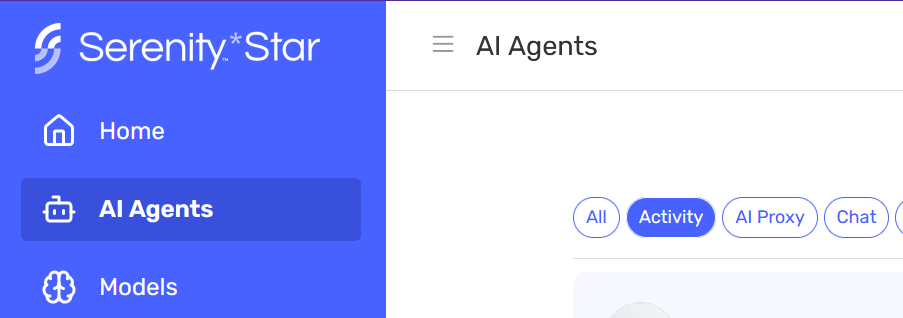
- Click the agent you want (or create a new one) to open the Agent Design Studio
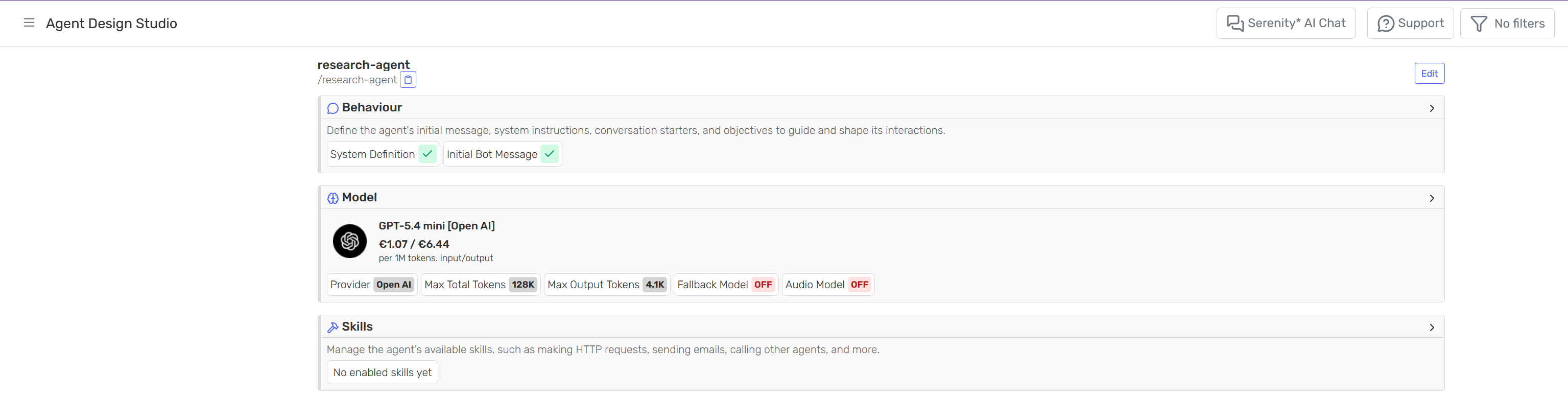
- Open the Skills card and select the skill you want to enable approvals for
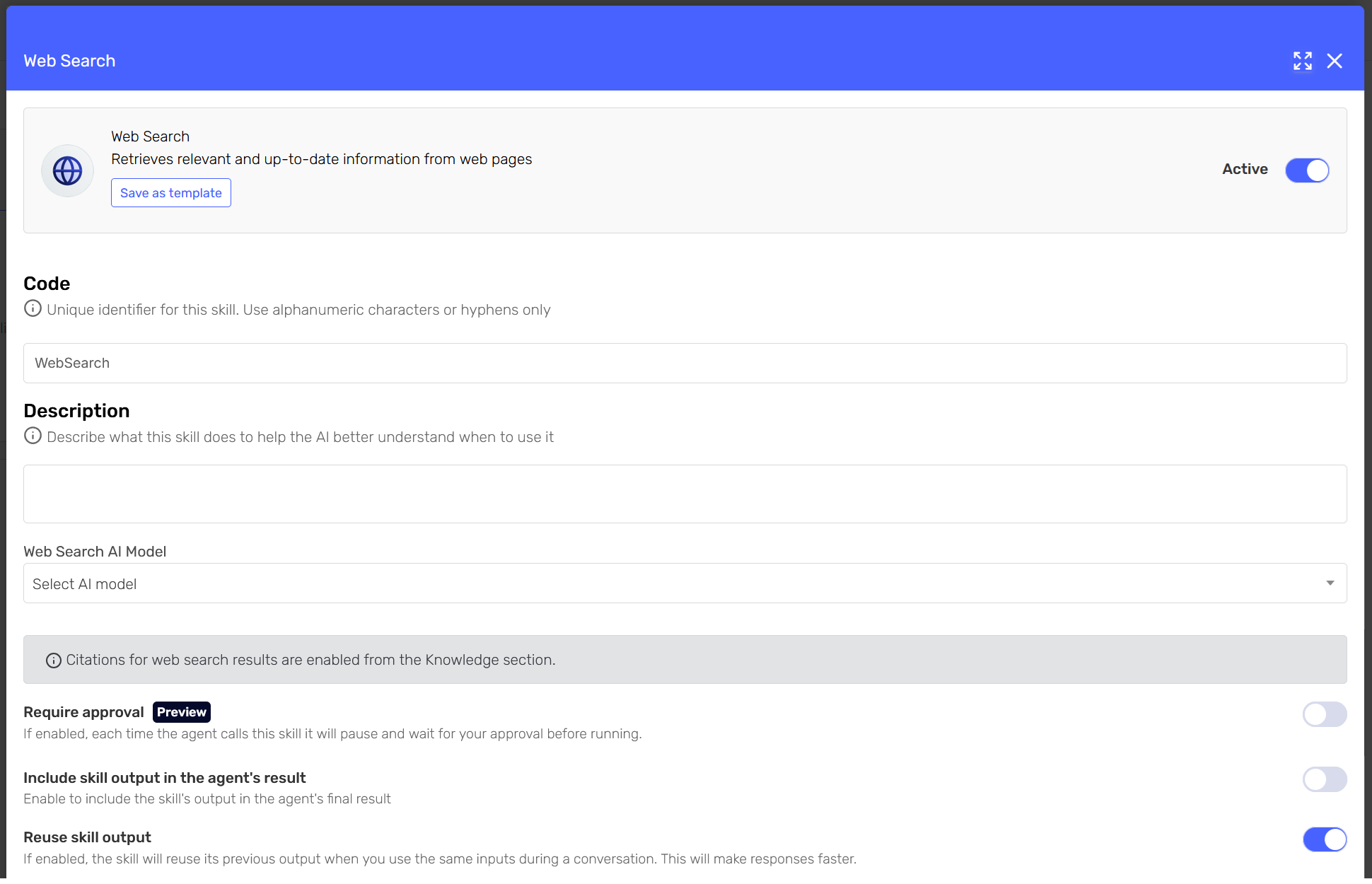
- Enable the "Requires approval" switch
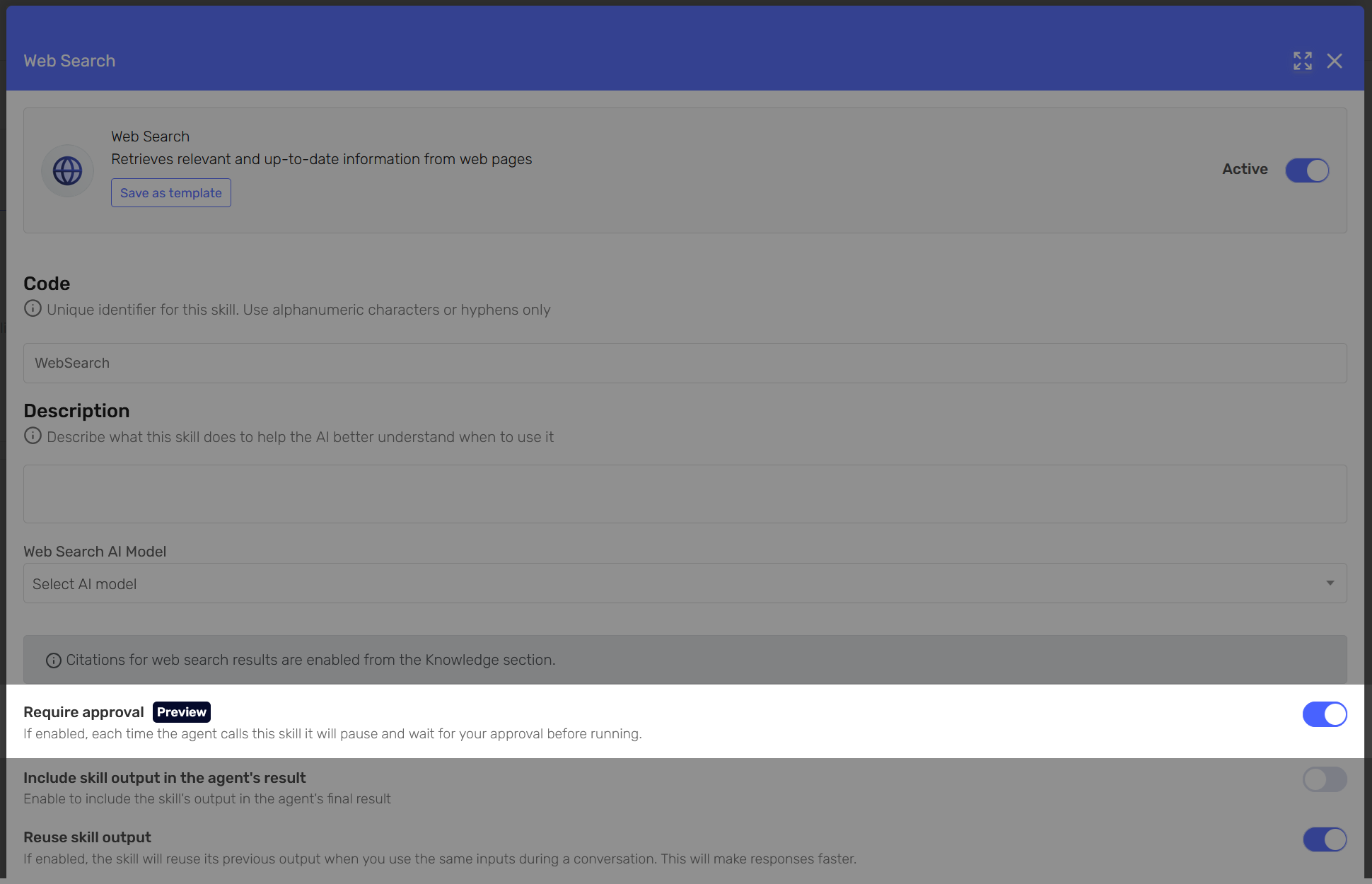
- Confirm the change and save
Once Requires approval is enabled on a skill, the experience is as follows:
- During a conversation, the agent decides to call the skill that requires approval and pauses.
- The client shows the approval request: which skill and tool the agent wants to run, and the arguments it would use, together with Approve and Reject controls.
- The user approves or rejects.
- On approve, the skill runs and the answer continues in the same conversation. On reject, the agent is told the user declined and carries on without that call.
Try it out in the Agent Design Studio
You can test this directly in the Agent Design Studio using the Preview tab on the right.
Ask the agent to do something that requires a skill you have set to require approval. Before running the skill, the agent shows you an approval card where you can see the skill it wants to invoke, the arguments it would use, and the buttons to approve or reject the call.
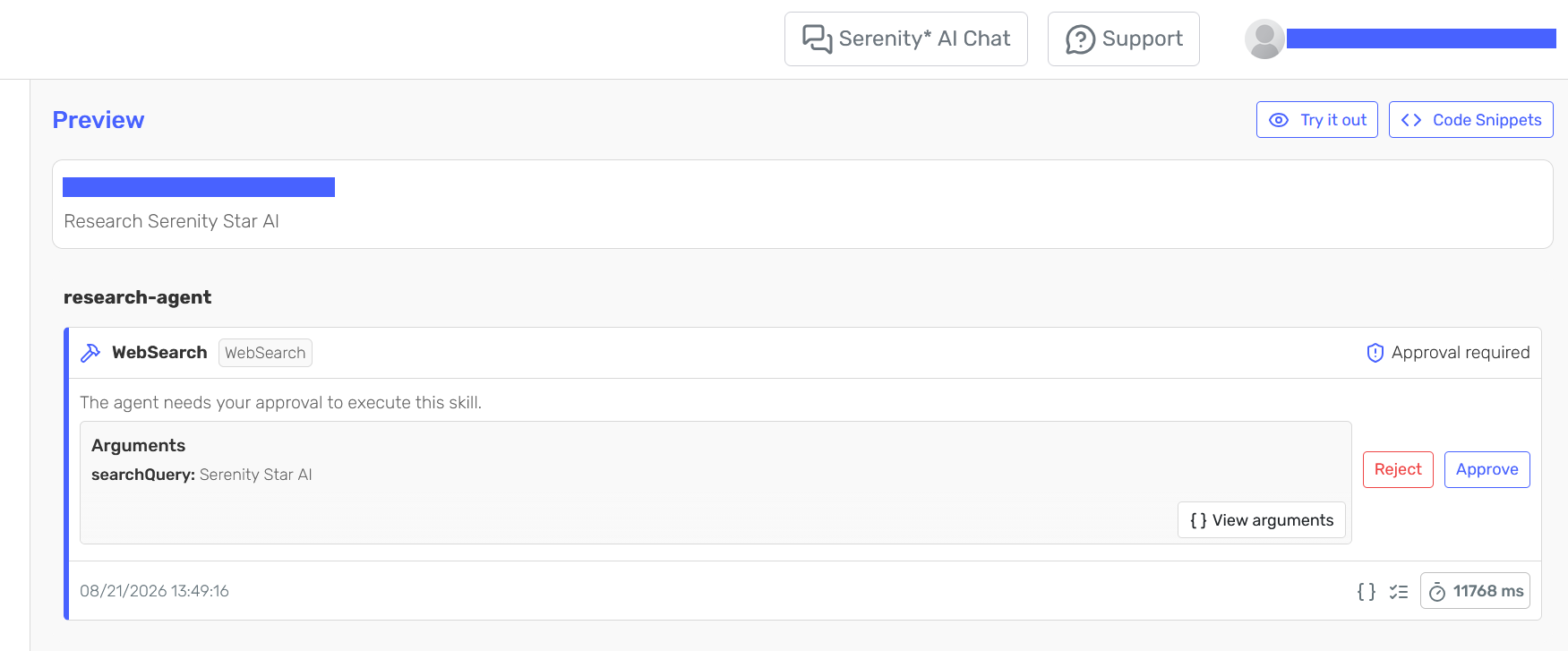
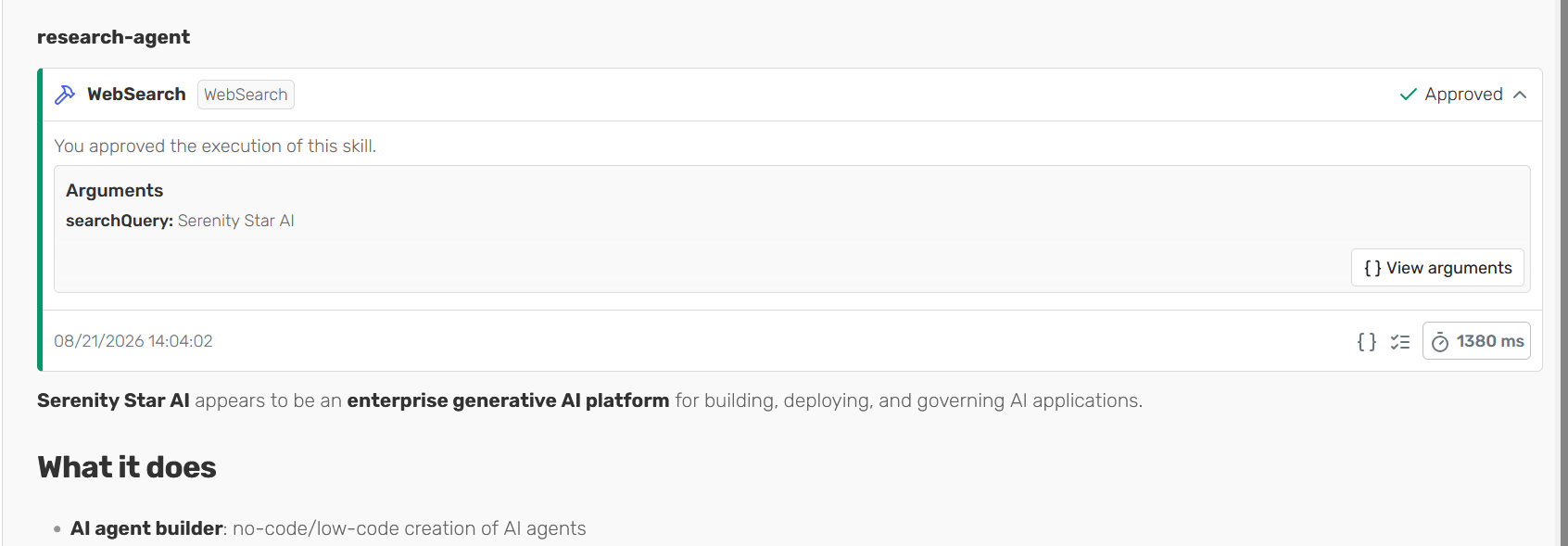
If you approve the skill, the agent proceeds with the call.
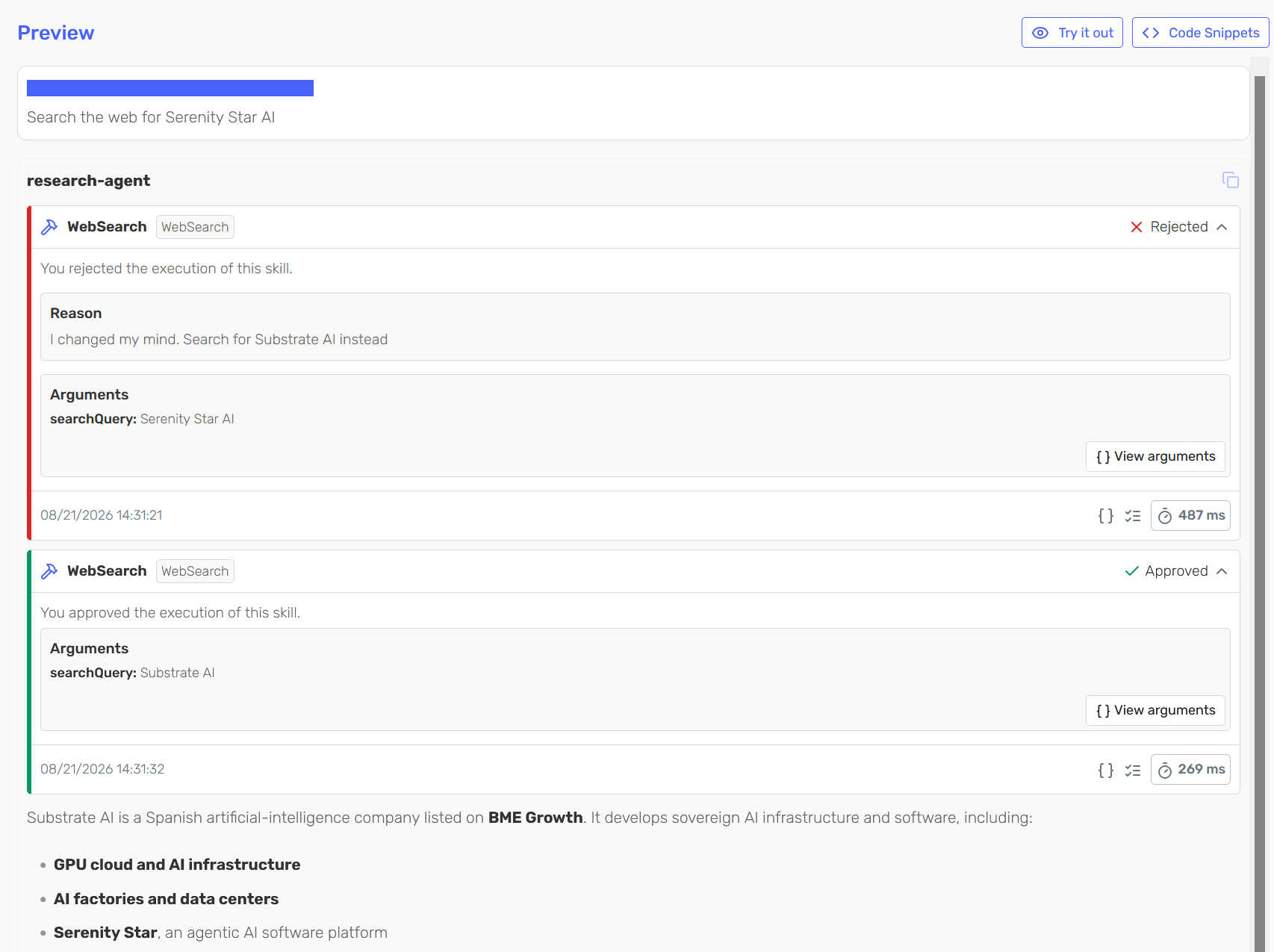
If you reject, the skill is not executed. You can also add a reason, which is sent to the agent along with the rejection, so the agent can decide whether to adjust its approach based on your feedback.
Serenity channels
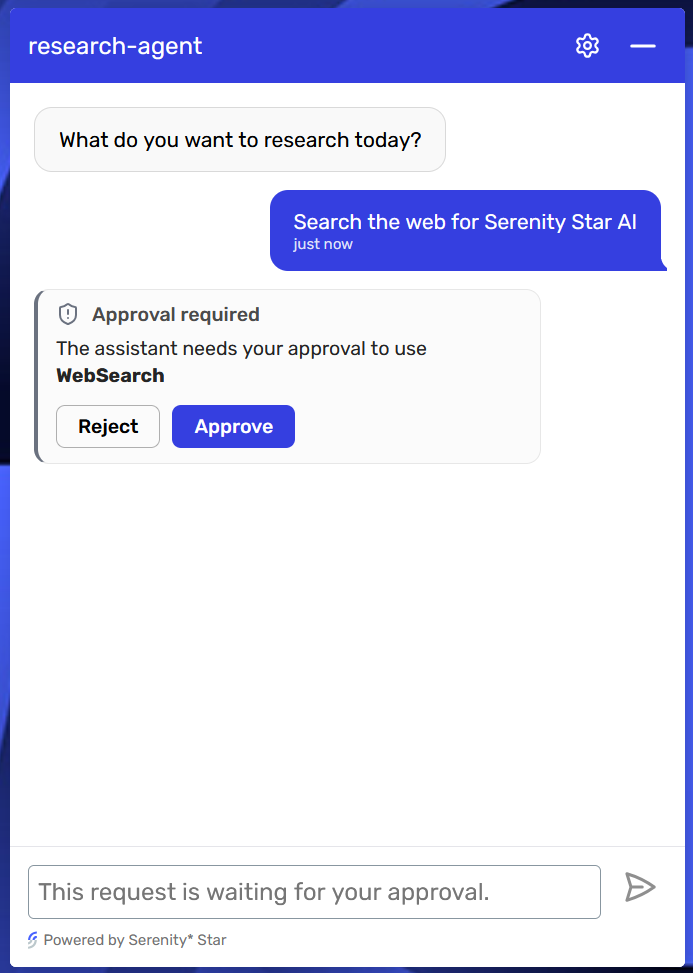
If your agent runs in a Serenity channel, approval works end-to-end with no integration work. The approval prompt is rendered for you and the approve/reject round-trip is handled automatically. The channels that support this feature are:
-
-
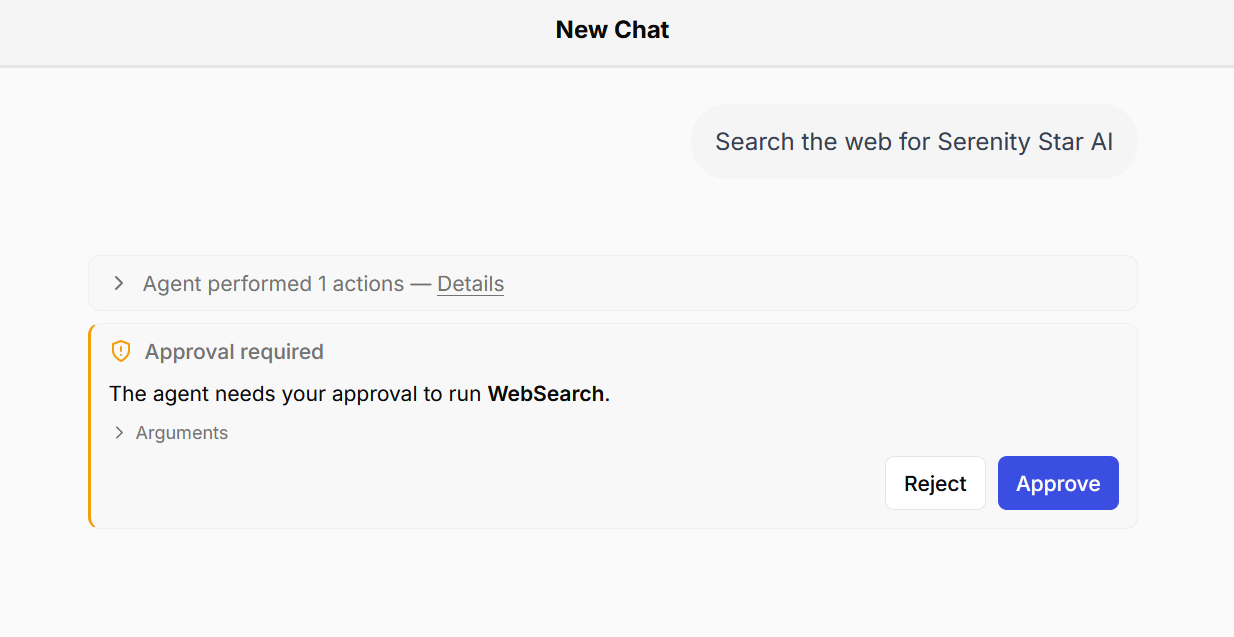
For Serenity AI Chat's general chat feature, you can configure approvals directly in the Serenity AI Chat Management view, within the "Skills" tab:
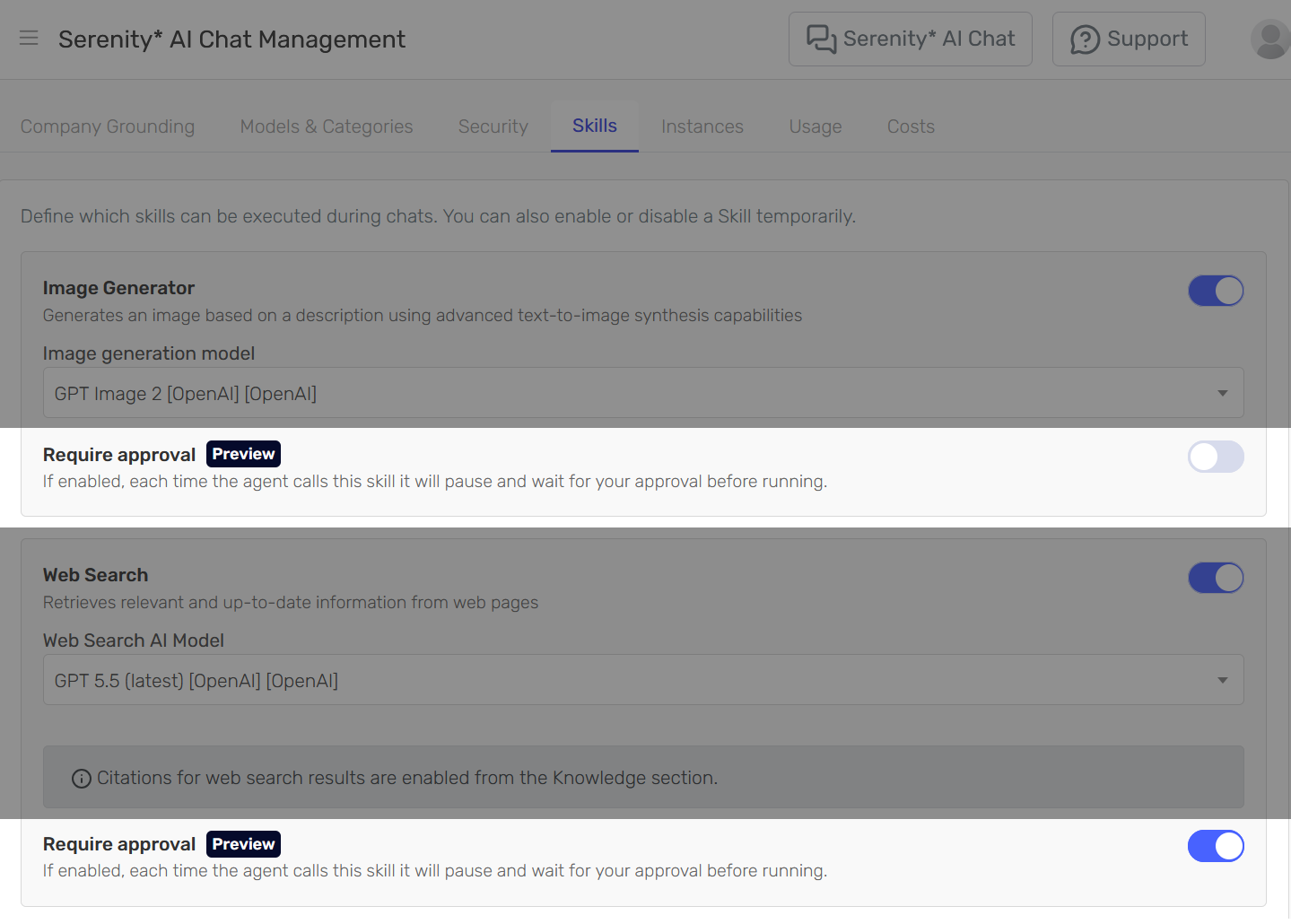
Building your own client
This section is for developers driving an agent over the REST execute endpoint and rendering the approval prompt in their own interface. The flow differs slightly between the two agent families, mainly in who owns the chat history:
- Conversational API (
Assistant,Copilot): the server owns the history and caches the paused run; you send back only the decision. - AI Proxy API: you own the history client-side; the approval travels inside the messages you send.
The pending approval
A paused run reports the same pending action of type approval within the agent's response:
{
  "content": "...",
  "usage": { /* ... */ },
  "pendingActions": [
    {                                       // The pending action can be found here.
        "type": "approval",
        "requestId": "ficc_abc123",
        "callId": "call_abc123",
        "skillCode": "read-emails",
        "skillType": "mcp",
        "tool": "read_emails",
        "arguments": {
            "folder": "inbox",
            "limit": 20
        }
    }
  ]
}
Conversational API (Assistant, Copilot)
The server owns the chat history (keyed by chatId) and caches the paused run, so the resume request only needs to carry the decisions, not the history.
First turn — the agent pauses
POST /agent/{code}/execute
Content-Type: application/json
[
  {
    "key": "message",
    "value": "Read my latest emails and summarize them"
  }
]
The response will include one or more approval pending actions (see The pending approval).
Resume turn — send the decisions
Re-POST to the same conversation with a toolApprovals array:
POST /agent/{code}/execute
Content-Type: application/json

[
  {
    "key": "chatId",
    "value": "1b9d…"
  },
  {
    "key": "toolApprovals",
    "value": [
      { "requestId": "ficc_abc123", "approved": true }
    ]
  }
]
Every pending request from the previous turn must be answered. If any is missing, the request is rejected and the unanswered pending actions are returned so you can re-present them.
Auto-approve override
Send skills: { "autoMode": true } on the execute request to automatically approve every call that would otherwise require approval for that execution (skipping the pause entirely). Use this for trusted or automated contexts.
POST /agent/{code}/execute
Content-Type: application/json

[
  {
    "key": "message",
    "value": "Read my latest emails and summarize them"
  },
  {
    "key": "skills",
    "value": {
      "autoMode": true
    }
  }
]
Streaming
Streaming uses Server-Sent Events (SSE).
When streaming, approval pending actions will be received via SSE events with key pending_actions_approval_request.
You can find the approval request within the output field:
Event: task_stop
{
    "type": "task_stop",
    "task": "Requesting skill approval",
    "task_key": "pending_actions_approval_request",
    "start_time_utc": "2026-08-21T13:10:08.011797Z",
    "end_time_utc": "2026-08-21T13:10:08.0120479Z",
    "duration": "00:00:00.0002509",
    "output": {                                       // The pending action can be found here.
        "type": "approval",
        "request_id": "ficc_abc123",
        "call_id": "call_abc123",
        "skill_code": "read-emails",
        "skill_type": "mcp",
        "tool": "read_emails",
        "arguments": {
            "folder": "inbox",
            "limit": 20
        }
    },
    "success": true
}
You can also find all the approvals in the final SSE stop event emitted before the stream closes.
The approval flow is identical; you just read it from the stream.
AI Proxy API
AI Proxy holds the chat history client-side and keeps no server cache. The approval therefore travels inside the chat history you send, as two messages that mirror the real conversation shape, and you echo back the request you received.
First turn — the agent pauses
POST api/agent/{code}/execute
Content-Type: application/json

{
  "model": "…",
  "messages": [
    { "role": "user", "content": "Read my latest emails and summarize them" }
  ]
}
The response is the same, see Pending Approval and Streaming.
Resume turn — put the approval in the history
Append two messages to the history and re-send it:
- an
assistantmessage carryingtool_approval_request, the pending action you received echoed back verbatim; - a
usermessage carryingtool_approval_response, your decision.
POST api/agent/{code}/execute
Content-Type: application/json

{
  "model": "…",
  "messages": [
    { "role": "user", "content": "Read my latest emails and summarize them" },
    {
      "role": "assistant",
      "tool_approval_request": {
        "requestId": "ficc_abc123",
        "callId": "call_abc123",
        "skillCode": "read-emails",
        "skillType": "mcp",
        "tool": "read_emails",
        "arguments": { "folder": "inbox", "limit": 20 }
      }
    },
    {
      "role": "user",
      "tool_approval_response": {
        "requestId": "ficc_abc123",
        "approved": true,
        "reason": "Looks fine"
      }
    }
  ]
}
The engine reconstructs the paused tool call from these descriptors, applies the decision, and re-runs, executing the skill (approve) or declining it (reject) and continuing to a final answer.