Connectors
Connectors are integrations with third-party services, such as Azure DevOps, Google Calendar or HubSpot, that provide skills your agents can use. To learn how users authenticate with these services, see Connections.
From the Connectors and User Connections tabs in the Compliance Center, you can choose which connectors are available in your organisation and review every connection your users create.
Note: Only users with the Tenant Administrator role can access the Connectors and User Connections tabs.
Available Connectors
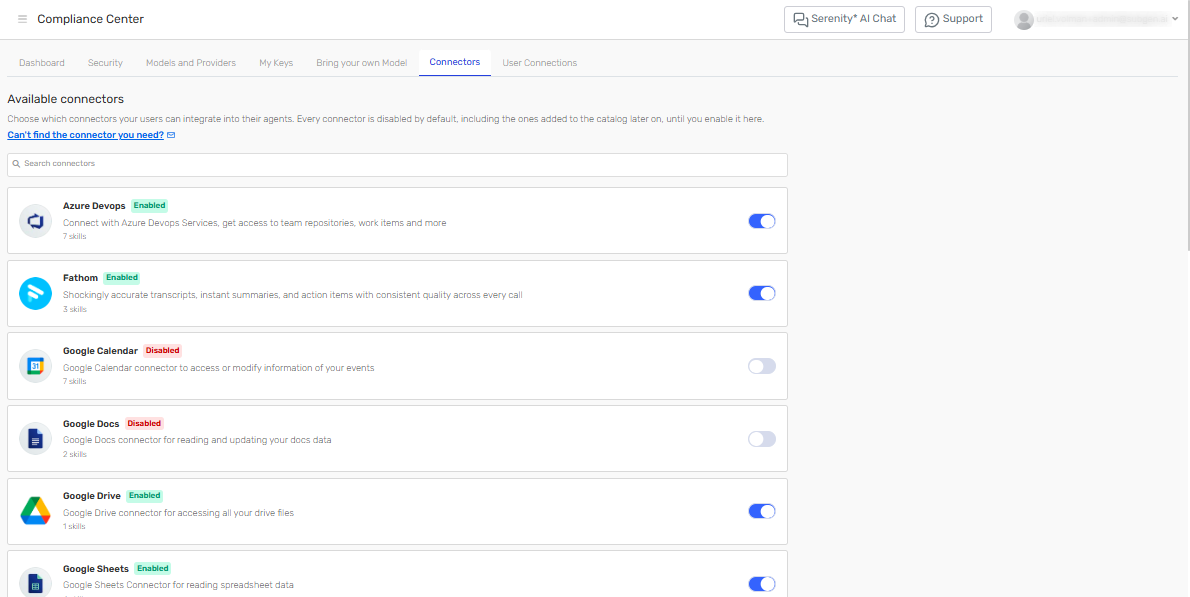
The Connectors tab lists the connectors in the Serenity* Star catalogue. Each connector shows its name, description, the number of skills it provides and its current status:
- Enabled: users can add the connector's skills to their agents.
- Disabled: the connector's skills are blocked for everyone in your organisation.
- Access requested: a user has asked for the connector to be enabled. See Access Requests.
Every connector is disabled by default, including the ones added to the catalogue later on, until you enable it. Use the search box to find a connector by name.
Enabling a Connector
Turn on the toggle next to the connector. The change applies immediately, and the connector's skills become available for your organisation.
Disabling a Connector
-
Turn off the toggle next to the connector.
-
Review the confirmation panel. If any agents currently use skills from the connector, the panel shows how many of them will be affected.
-
Click "Disable connector" to confirm, or "Cancel" to keep the connector enabled.
When you disable a connector:
- Agents using its skills will fail with a blocked-by-policy error until the connector is enabled again.
- Existing connections and skill configurations are kept. Nothing is deleted.
- Enabling the connector again makes its skills available immediately, reusing the existing connections without any reconfiguration.
Access Requests
When a connector is not enabled, users can request access to it from the connector catalogue while configuring the skills of an agent. When a user requests access:
- All Tenant Administrators in your organisation receive an email with the connector and the user who requested it.
- The connector is shown at the top of the Connectors tab with the Access requested status and the email of the user who requested it.
- The connector's skills stay blocked for everyone in your organisation until the request is approved.
To approve a request, turn on the connector's toggle. The connector is enabled for your whole organisation and the user who requested it is notified by email.
Requesting a New Connector
Only Serenity* Star can add new connectors to the catalogue. If the connector you need is not listed, click "Can't find the connector you need?" to open a pre-filled email to Serenity* Star support, and describe the connector or tool you need and your use case.
Users without administrator permissions can also report a missing connector from the connector catalogue. In that case, all Tenant Administrators receive an email with the requested connector or tool and the use case, along with a button to forward the request to Serenity* Star.
Connectors During Onboarding
Connectors can also be enabled during the onboarding of your organisation. You can change that selection at any time from the Connectors tab.
User Connections
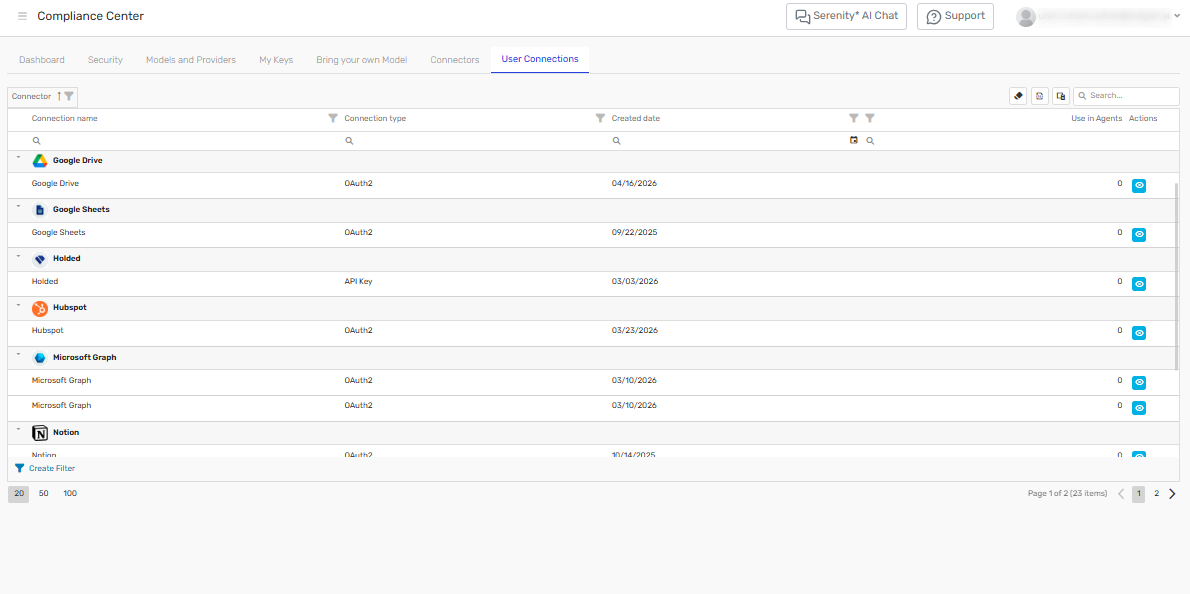
The User Connections tab lists every connection created by the users in your organisation, across all subtenants, grouped by connector. Use it to see which services your users connect their Serenity* accounts to and which agents rely on each connection.
| Column | Description |
|---|---|
| Connection name | Name of the connection. |
| Owner | Email of the user who created the connection. |
| Subtenant | Subtenant the connection belongs to. |
| Connection type | Authentication method used by the connection, such as OAuth2 or API Key. |
| Created date | Date the connection was created. |
| Use in Agents | Number of agents using the connection. |
Connection Details
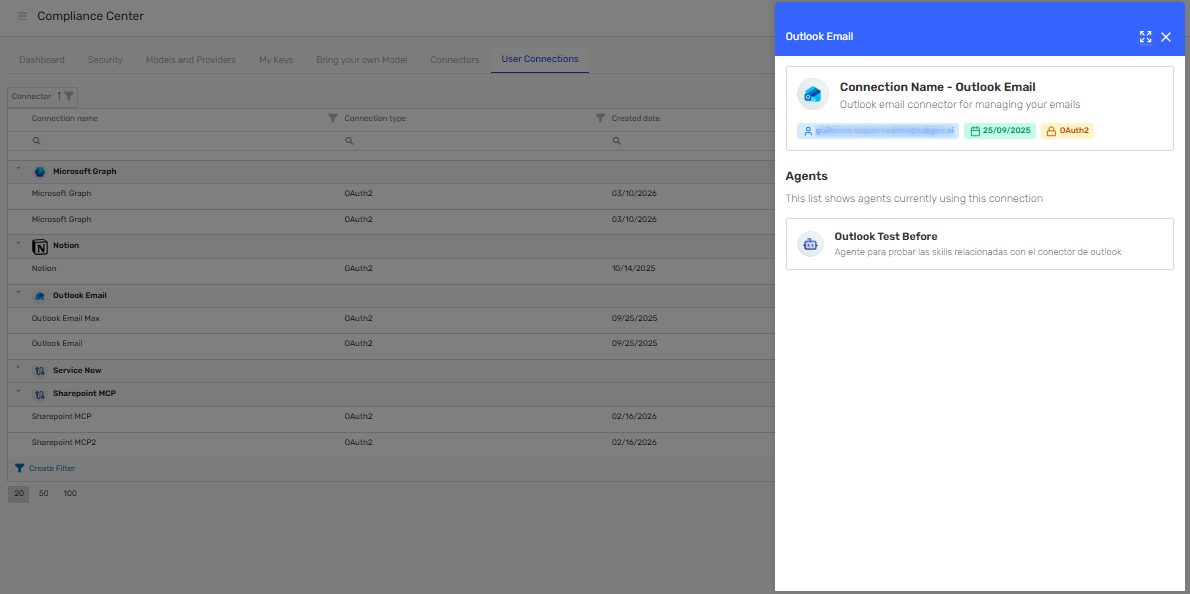
Click the view button (eye icon) in the Actions column to open the details of a connection. The panel shows the owner, creation date and authentication type of the connection, together with the list of agents currently using it.
Connections are personal, so they can only be managed by their owners. To learn more, see Connections.