Workflows
Introduction
Workflows enable you to create structured, automated processes that orchestrate the execution of agents and tasks. With Workflows, you can build sophisticated business logic by combining multiple agents, implementing conditional branching, loops, and error handling to create powerful automated solutions.
Workflows are accessible from the sidebar navigation and provide both visual design tools and programmatic control over your automation processes.
Getting Started
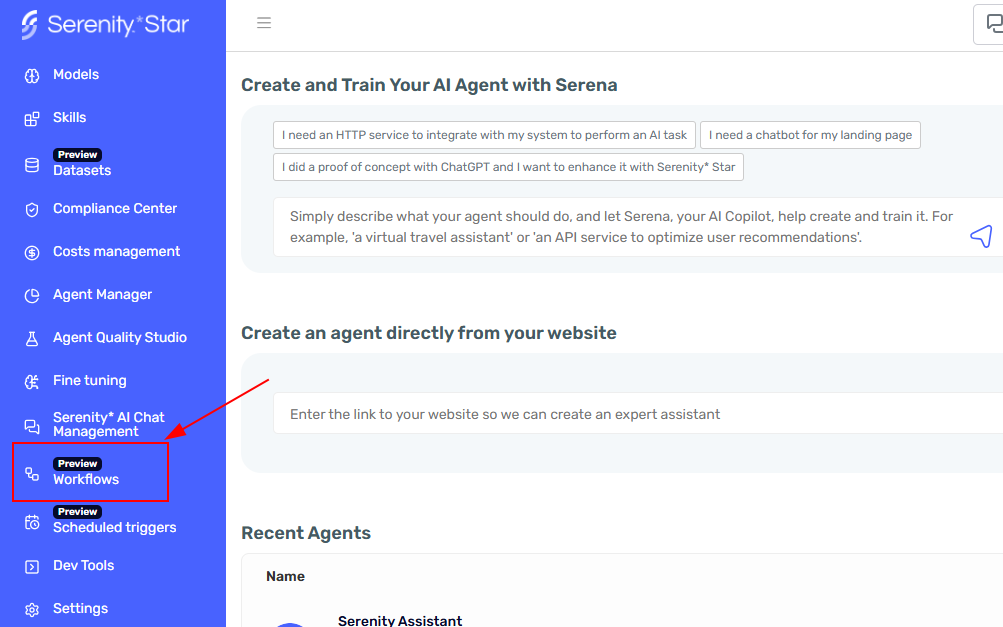
Access Workflows
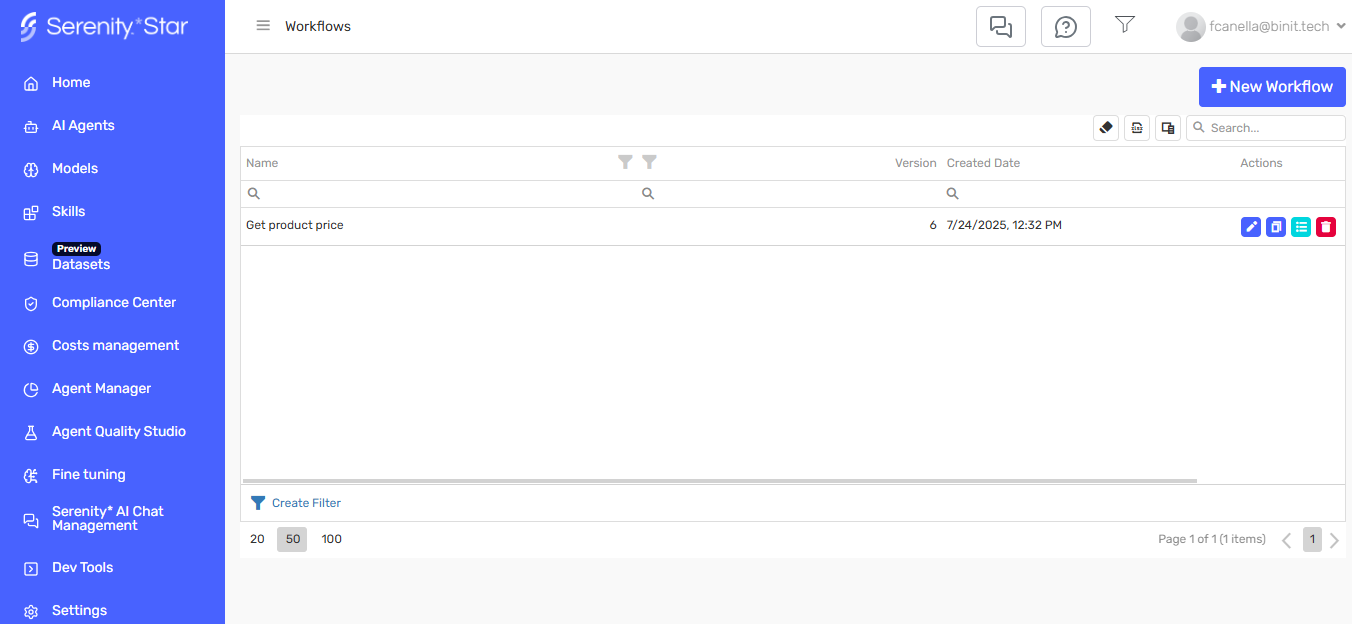
Navigate to the Workflows module from the sidebar. This will display a grid containing all your existing workflows.
The workflows grid shows key information about each workflow, including name, version, creation date, and available actions.
Create a New Workflow
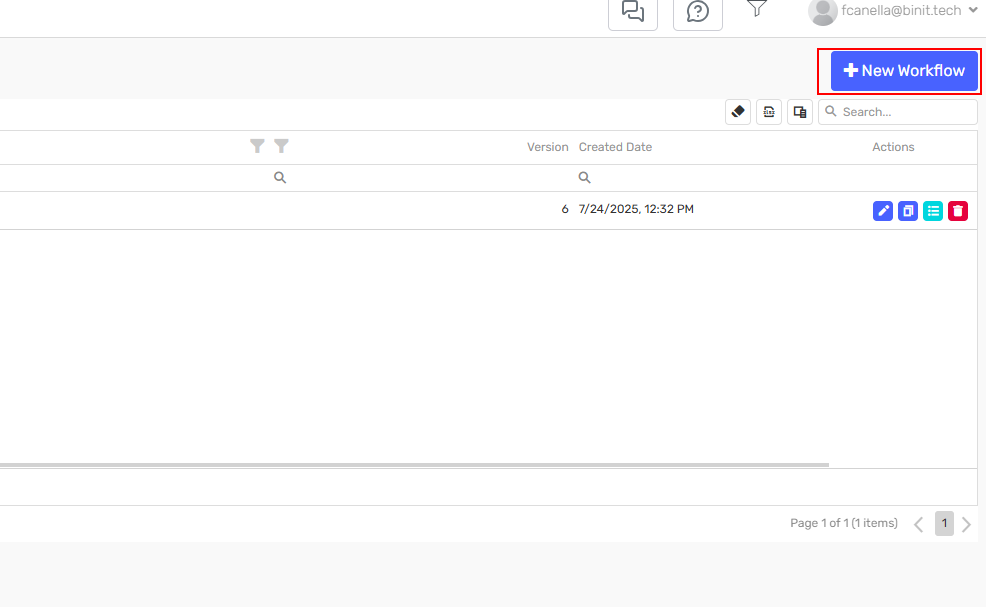
To create a new workflow, click the "New Workflow" button. This will open a side panel where you can configure your workflow details.
In the creation panel, you'll need to provide:
- Name: A unique identifier for your workflow
- Description: A brief explanation of what the workflow does
- Instructions: (Optional) Instructions for Serena to generate the workflow automatically
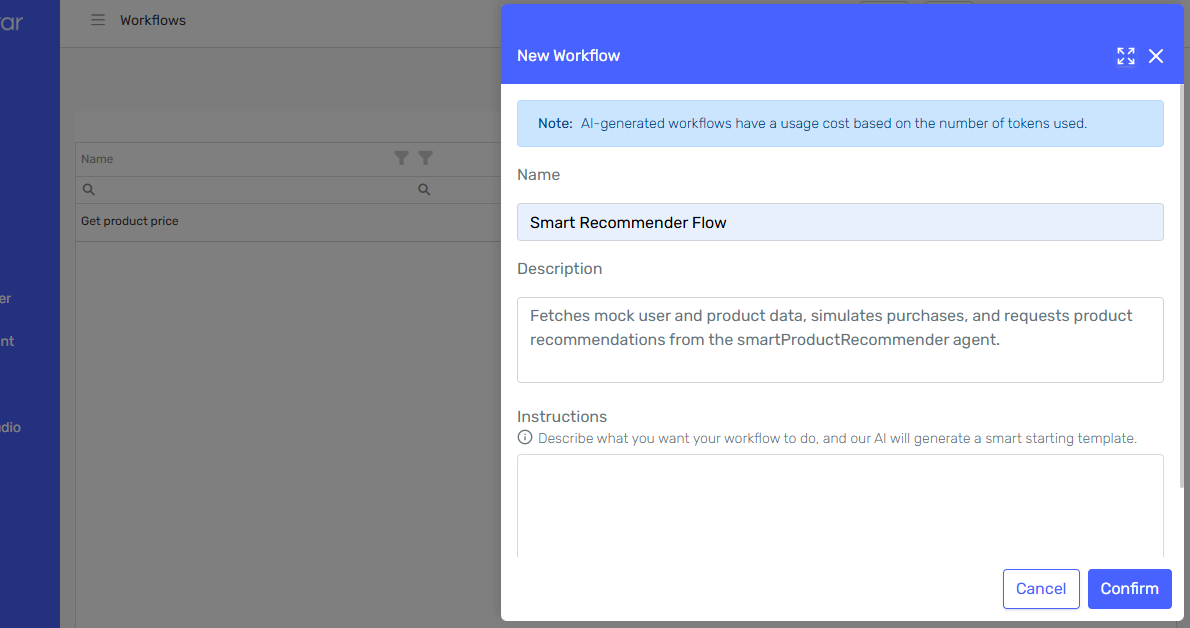
After filling in the details, click "Create" to proceed to the workflow designer.
Workflow Designer Overview
Once created, the workflow designer opens automatically, providing a visual canvas where you can build your automation.
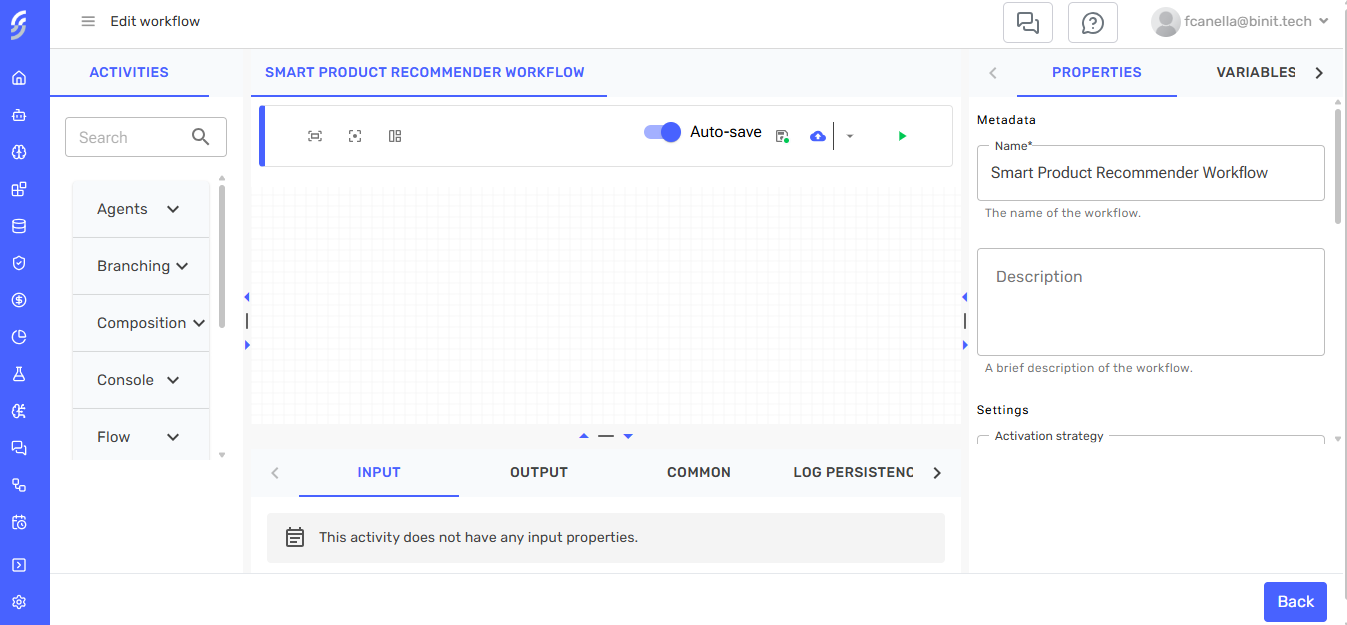
The designer interface includes:
- A visual canvas for designing your workflow
- An activities panel with available workflow components
- Configuration panels for selected activities
- Tools for testing and managing your workflow
Creating Workflows with Serena
Serena can help you build workflows by interpreting natural language instructions and generating the workflow structure automatically.
Using AI Prompt
When creating a new workflow, you can provide an AI prompt describing what you want the workflow to accomplish. Serena will analyze your requirements and generate the appropriate workflow structure.
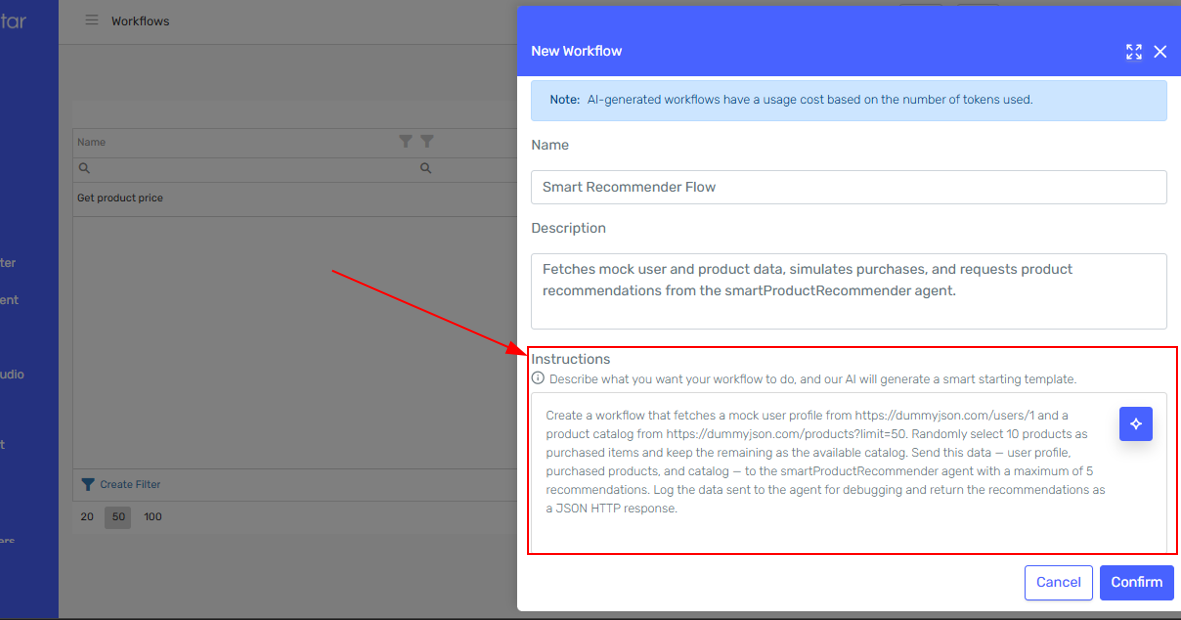
Serena generates the workflow with the necessary activities, connections, and configurations based on your description.
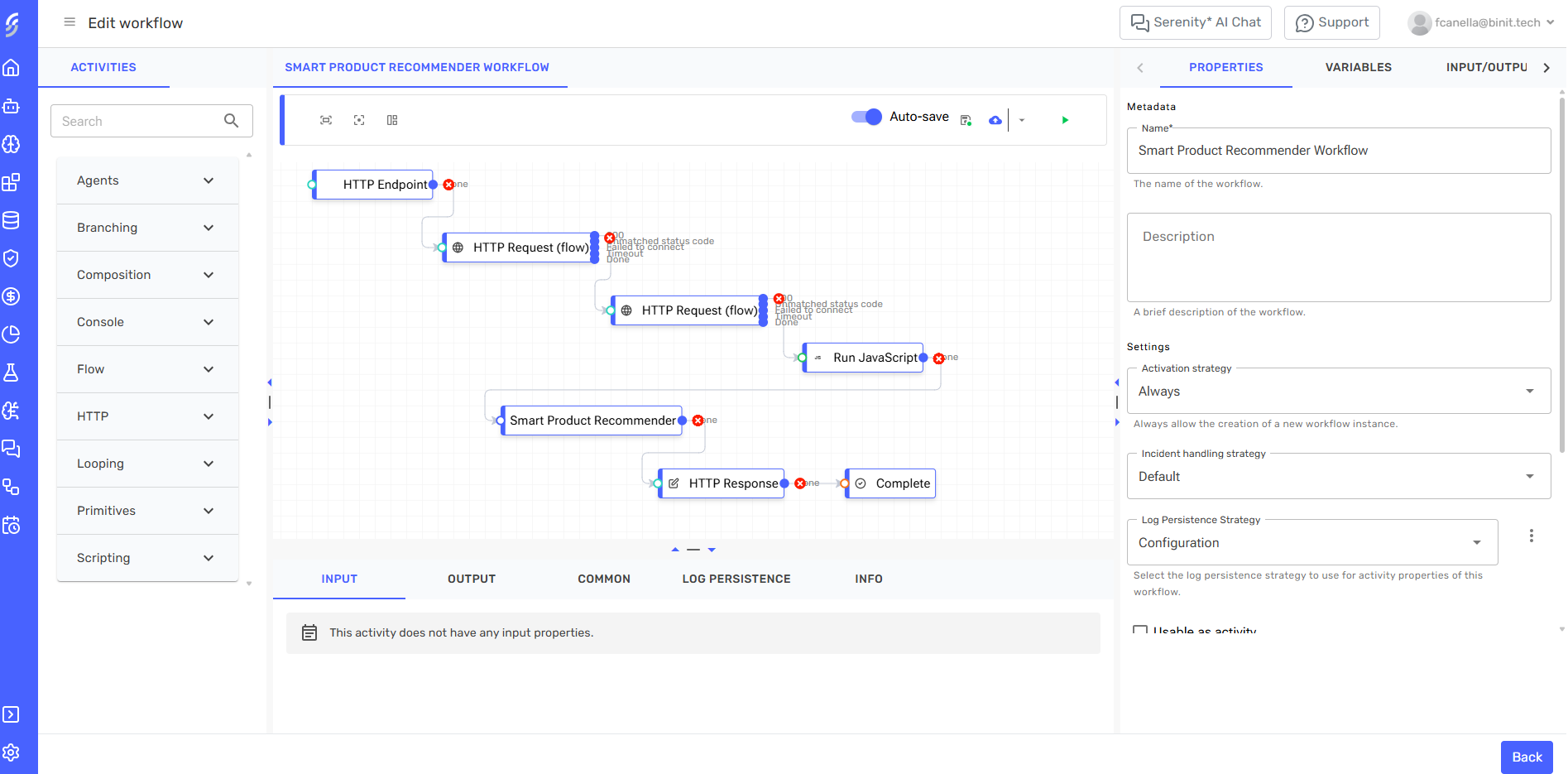
Be specific in your AI prompt. Instead of "process customer requests," try "receive customer email, check inventory levels, and send confirmation if item is available."
Workflow Activities
Activities Panel
The activities panel displays all available components you can add to your workflow. Activities are organized into categories for easy navigation.
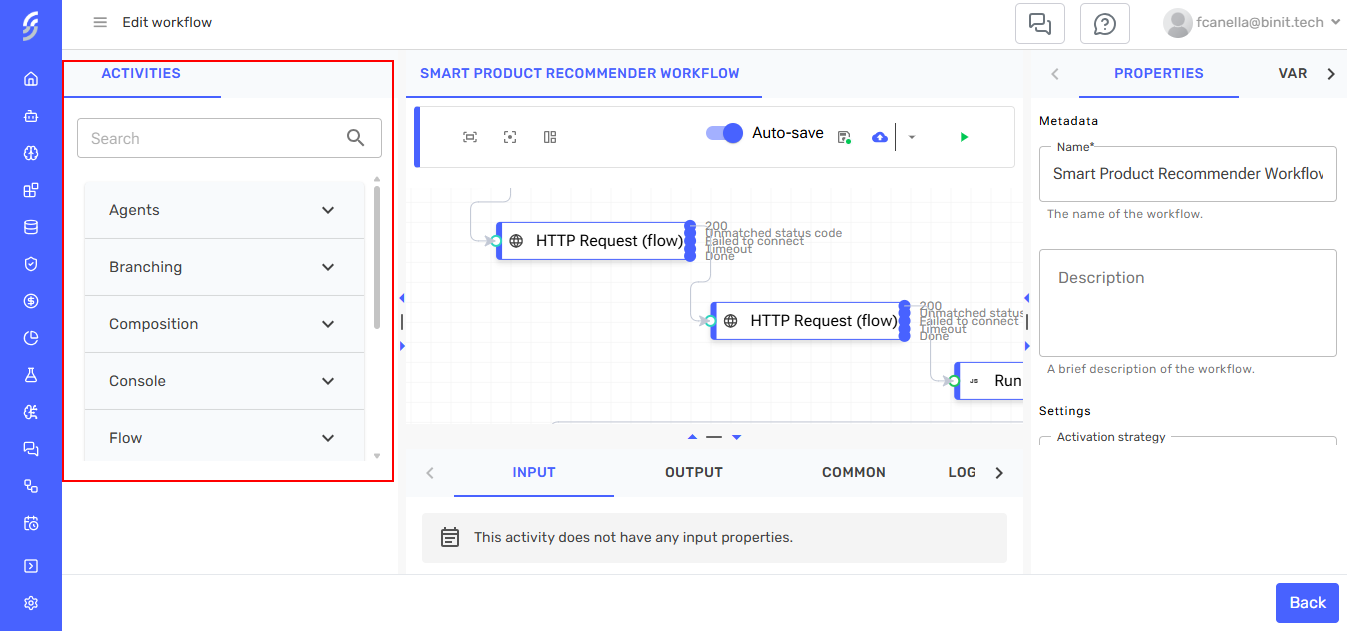
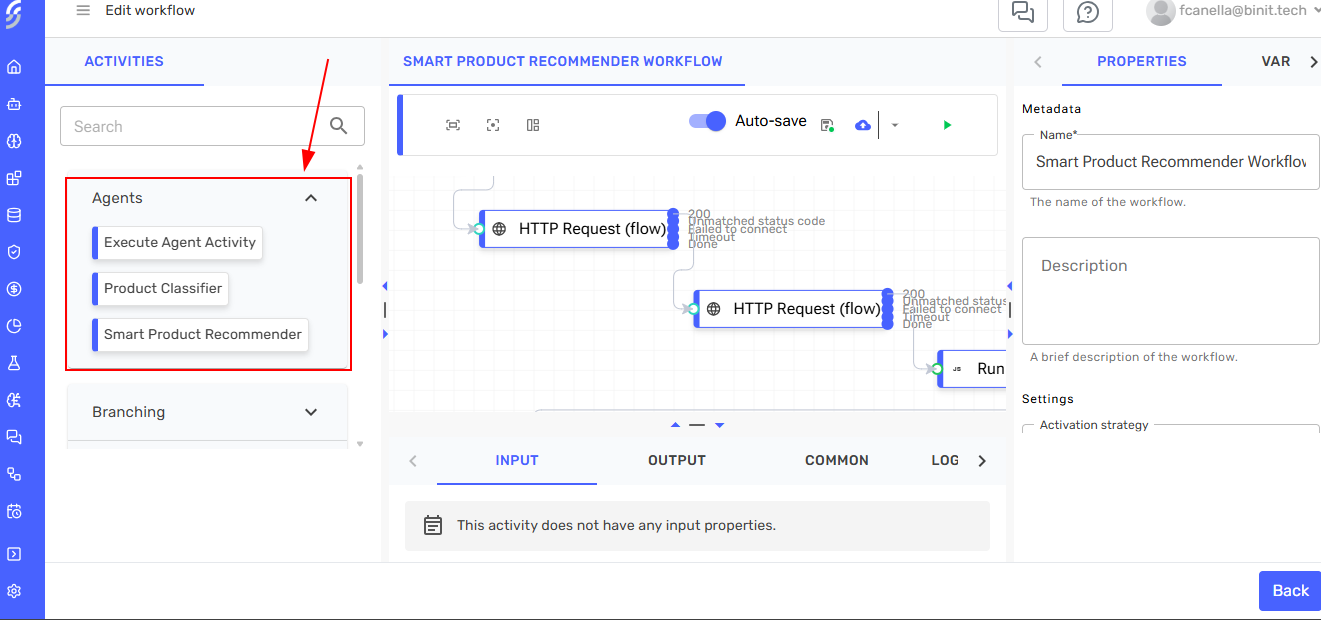
Agent Activities
Custom agent activities are automatically created for each of your agents. These activities allow you to execute your agents as part of a workflow, with full access to their specific input parameters.
Configuring Activities
Click on any activity in the designer to open its configuration panel. Here you can set input parameters, configure outputs, and define the activity's behavior.
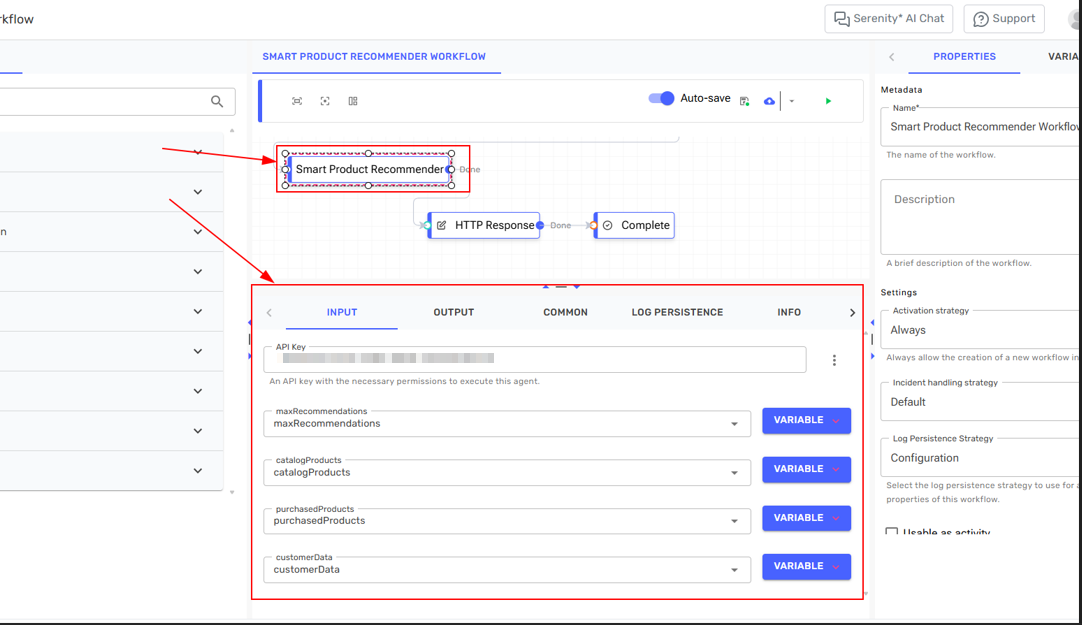
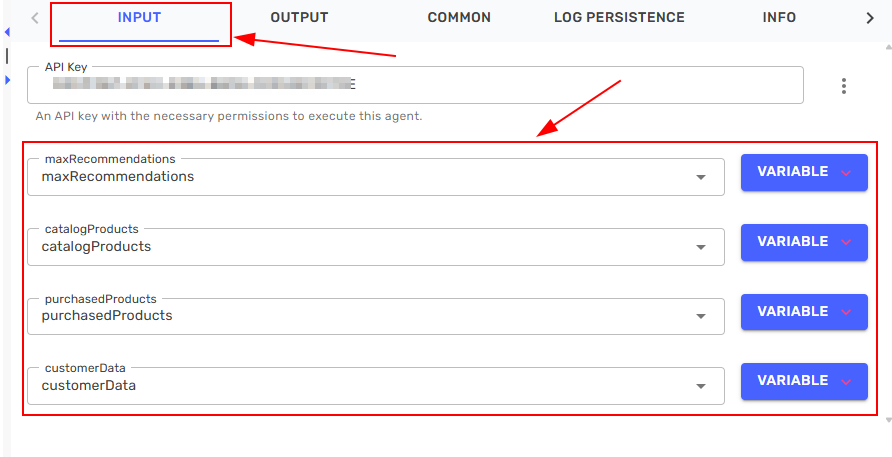
For agent activities, the configuration panel displays the specific input parameters required by that agent.
Variables and Data Flow
Working with Variables
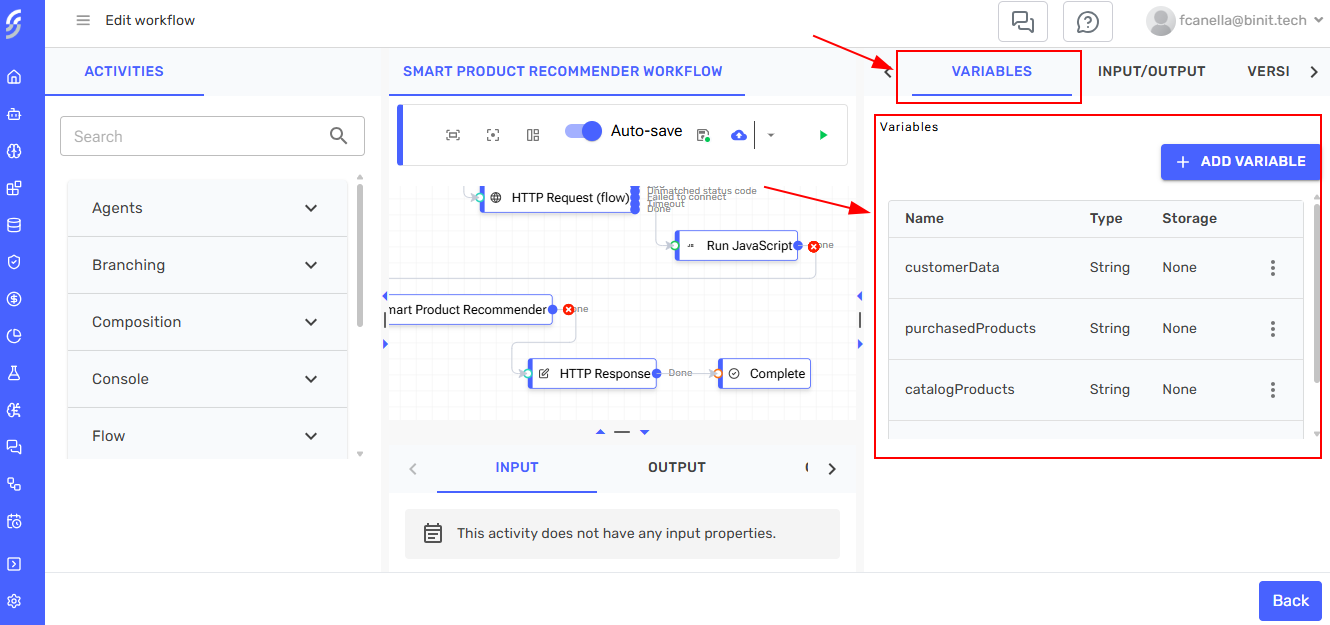
Variables allow you to store and pass data between activities in your workflow. You can create, edit, and manage variables through the variables panel.
Input and Output
Configure workflow inputs to accept parameters when the workflow is executed, and define outputs to return results.
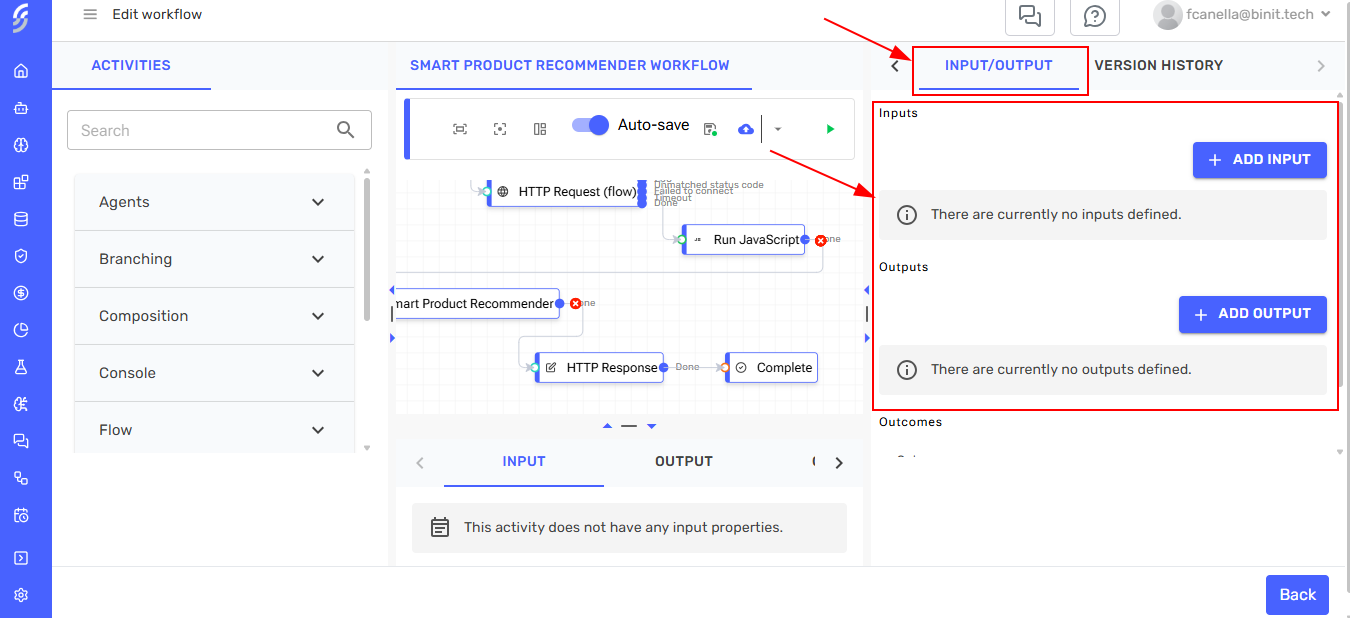
Variables can be referenced throughout your workflow using the expression syntax. This enables dynamic data flow between activities.
Flow Control
Workflows support various control flow activities that enable you to implement sophisticated business logic.
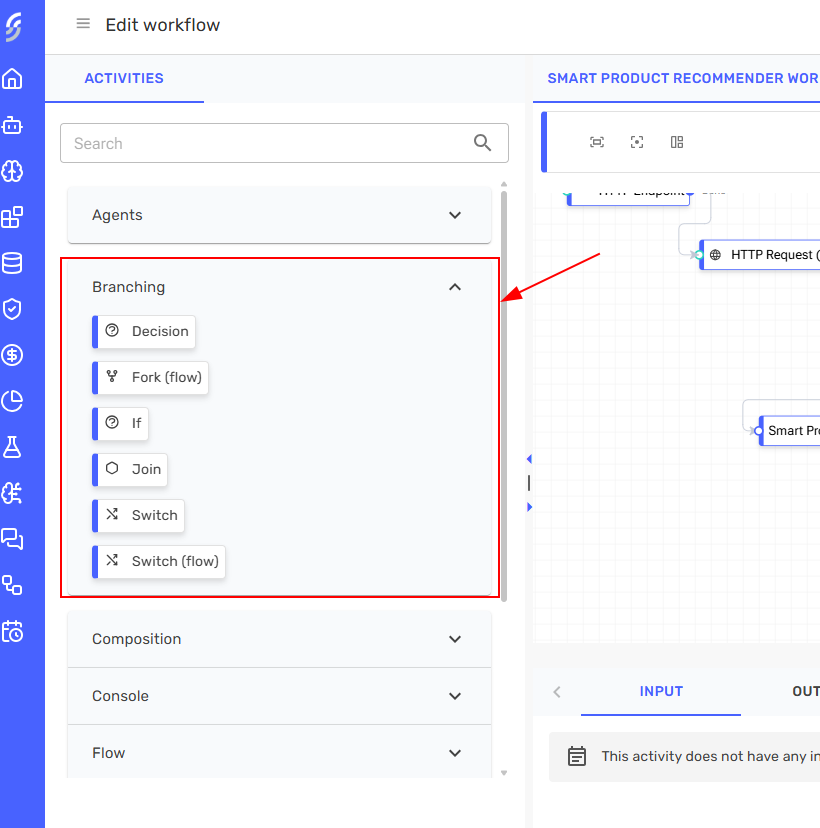
Branching Activities
Use branching activities to create conditional logic in your workflows based on data or agent responses.
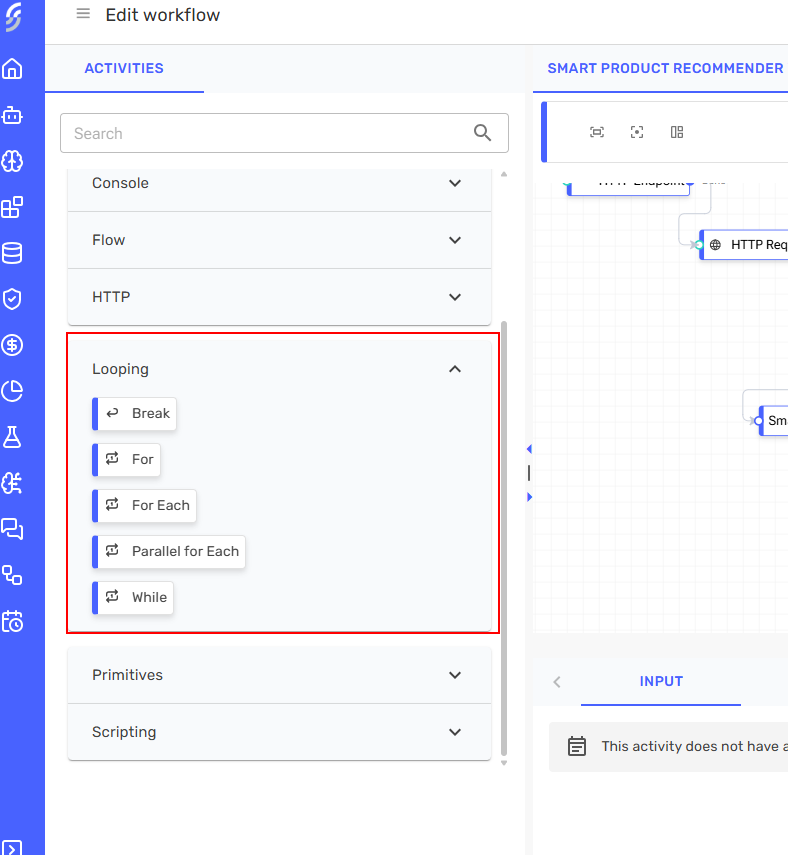
Looping Activities
Implement loops to process collections or repeat operations until a condition is met.
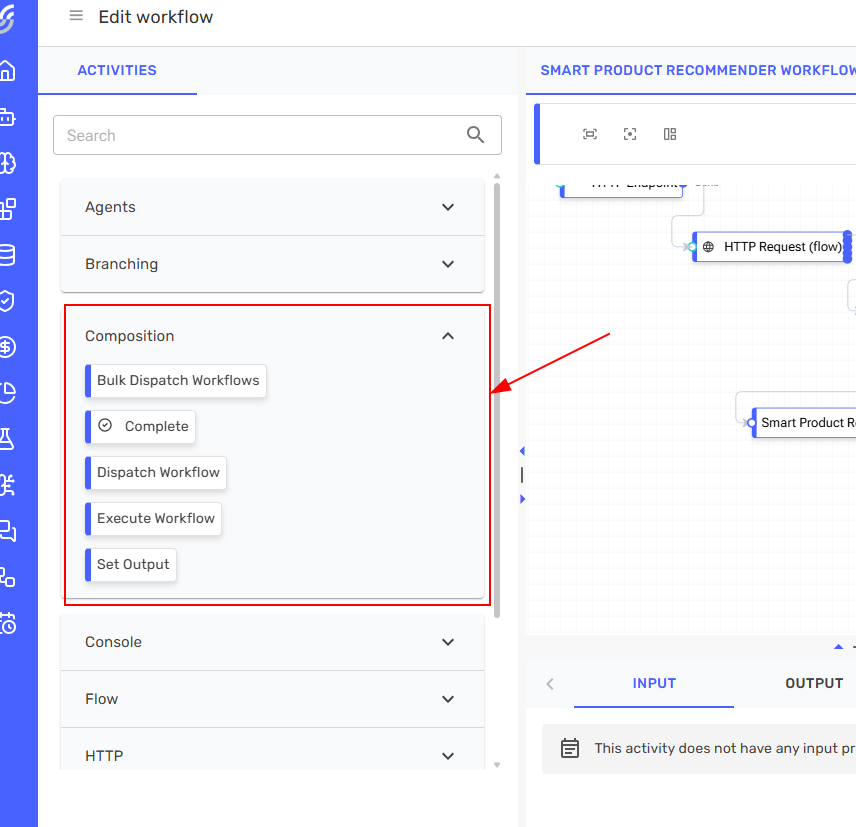
Composition Activities
Composition activities allow you to structure and organize your workflows with parallel execution and nested workflow calls.
Monitoring and Execution
View Workflow Instances
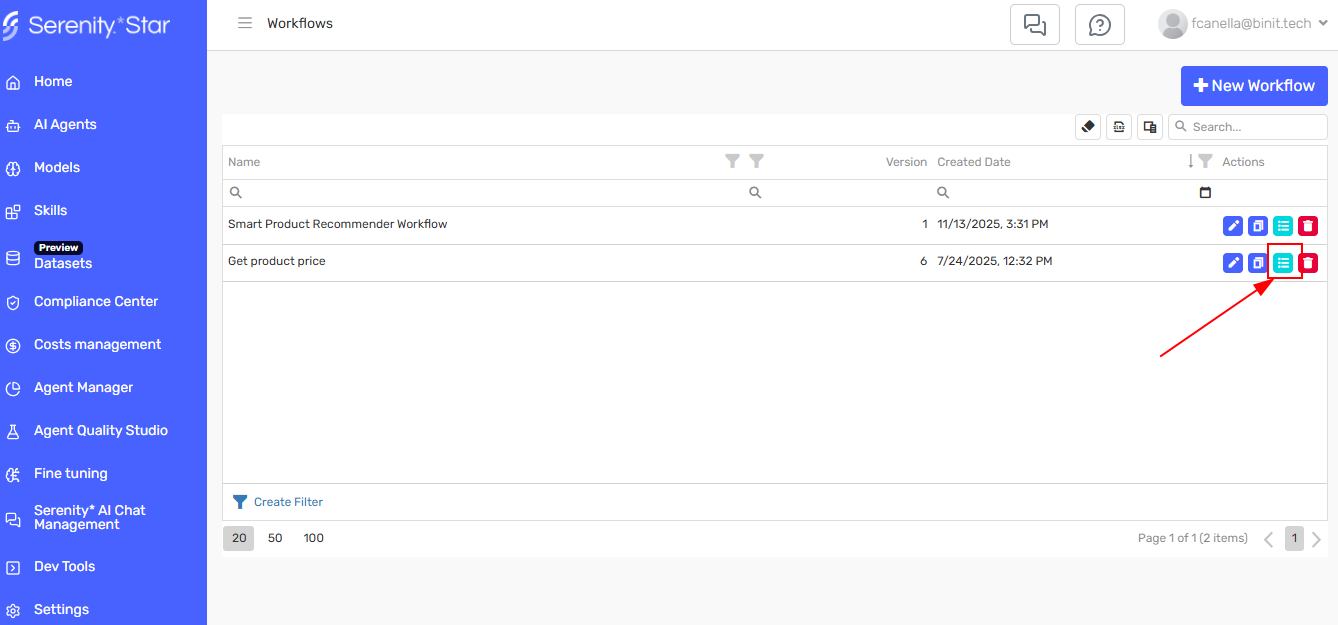
Each time a workflow executes, it creates an instance. You can view all instances by clicking the "View Instances" button on the workflow row.
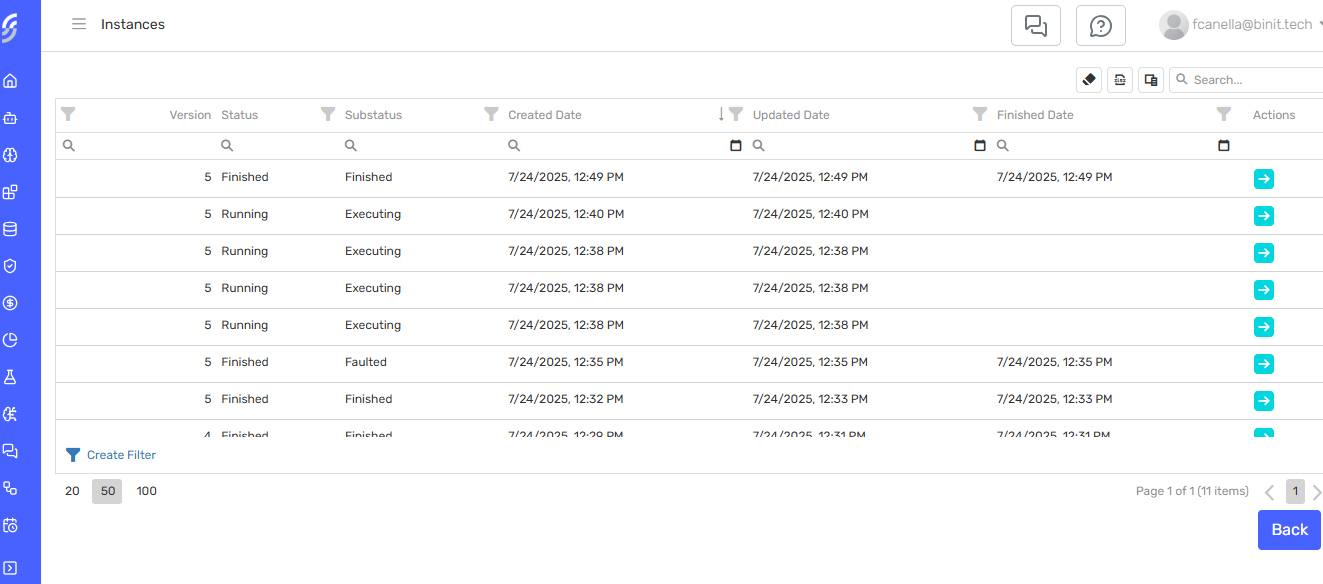
The instances grid displays all executions of the workflow, including the version that was executed and the current status.
Instance Details
Click on any instance to view detailed execution information, including the state of each activity, variables, and any errors that occurred.
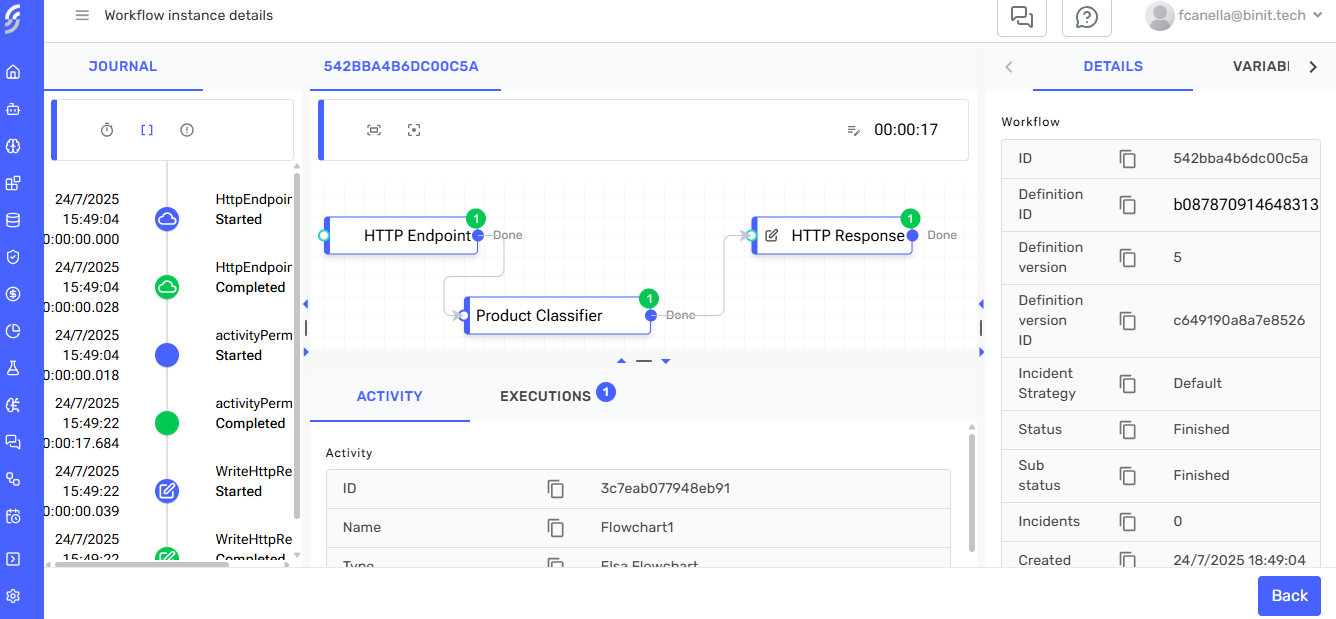
The instance detail provides visibility into:
- Execution timeline
- Activity states and transitions
- Variable values at each step
- Error messages and stack traces
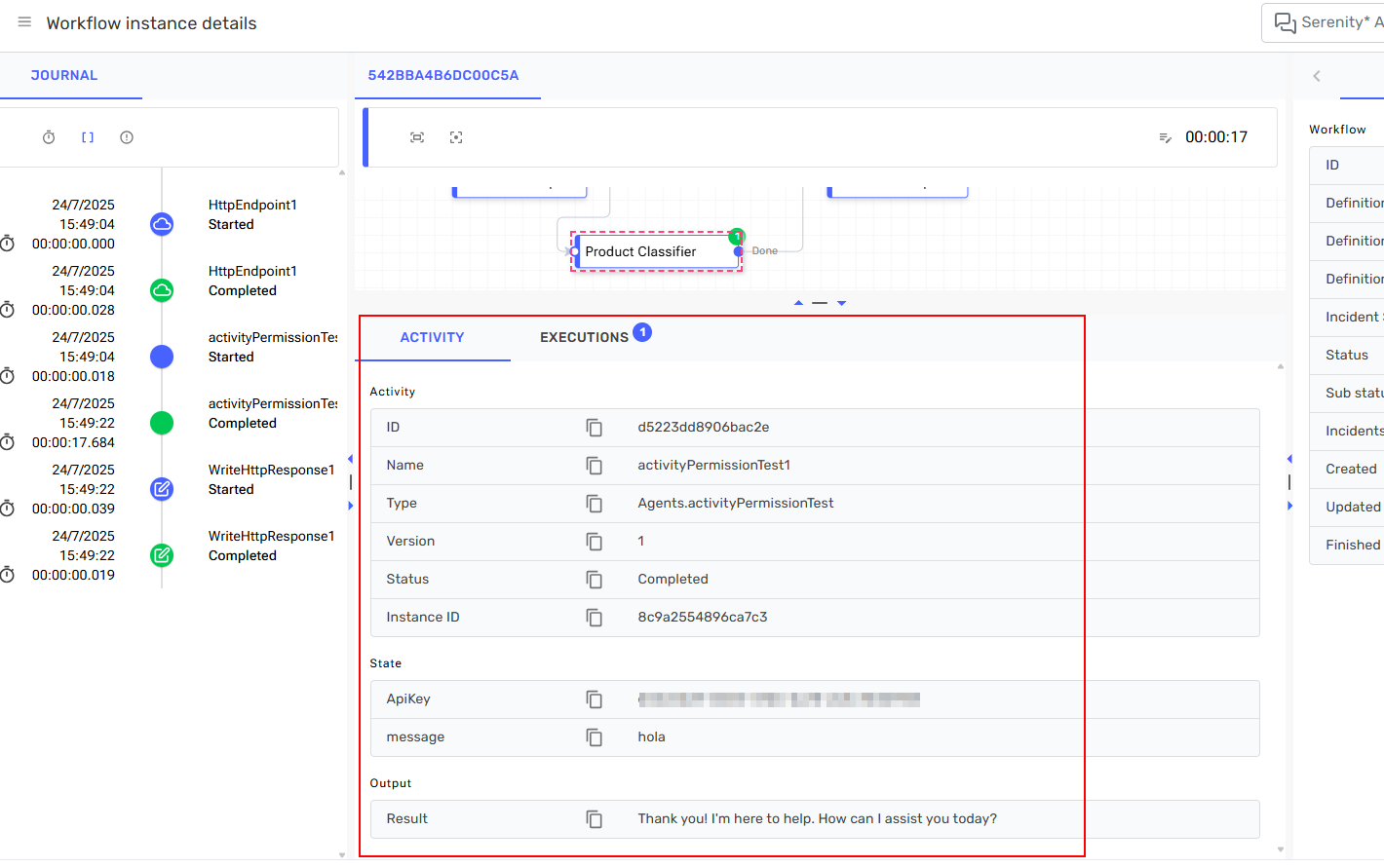
While workflows are executing, you can monitor their progress through the instance detail view. However, automatic real-time updates are not currently available - refresh the page to see the latest status.
Workflow Management
Managing Your Workflows
The workflows grid provides quick access to common actions for each workflow.
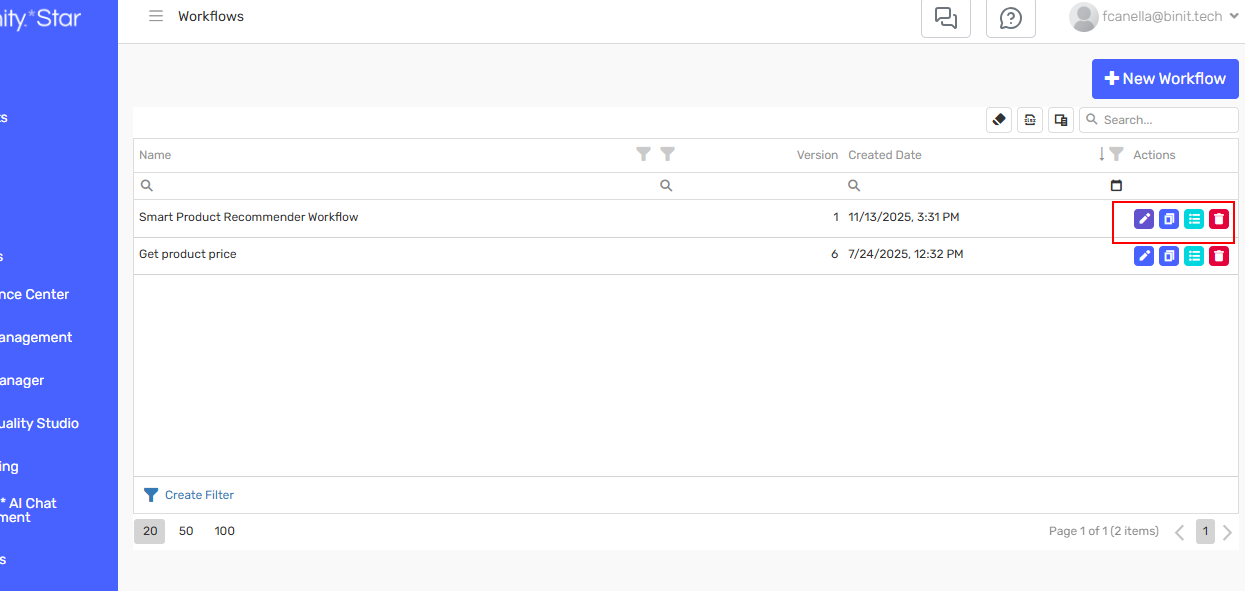
Available actions:
- ✏️ Edit: Opens the workflow designer to modify the workflow
- 📋 Duplicate: Creates a copy of the workflow
- 📄 View Instances: Shows execution history and instance details
- 🗑️ Delete: Removes the workflow (requires confirmation)
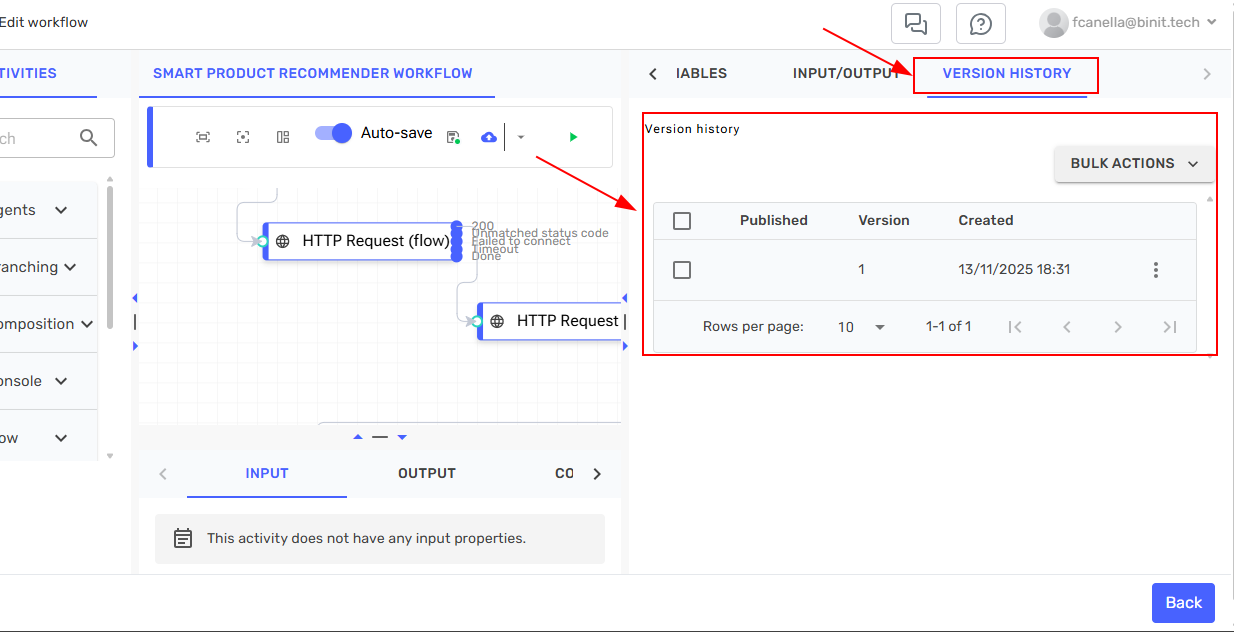
Workflow Versions
Workflows support versioning, allowing you to track changes and maintain different versions of your automation processes. The instances grid shows which version was executed for each run.
Reusability
Workflows are designed to be reusable components in your automation strategy. Once created, a workflow can be:
- Executed multiple times with different input parameters
- Triggered from external systems via API
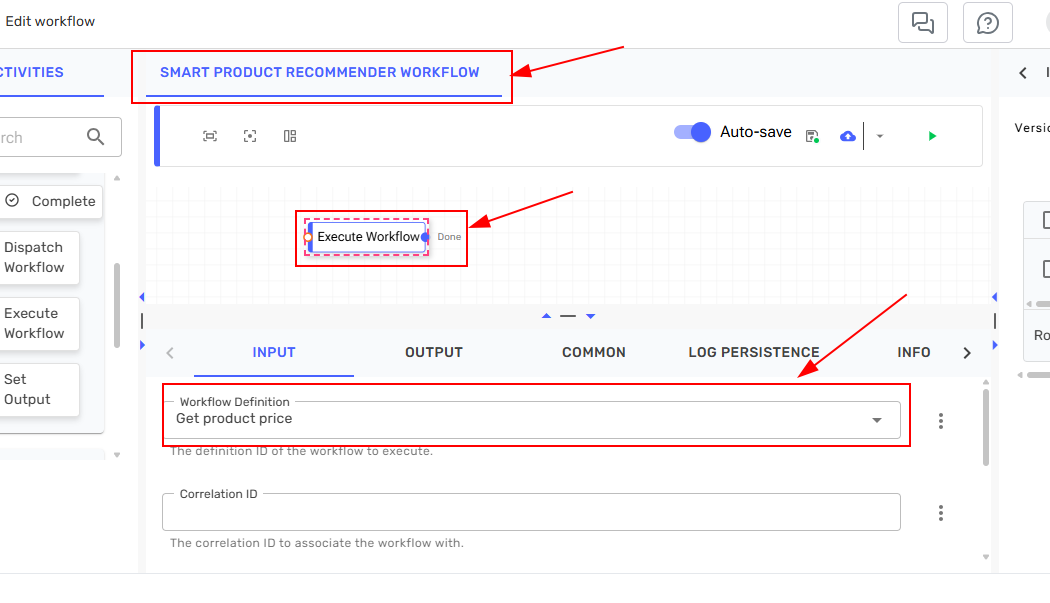
- Called from other workflows using the Execute Workflow activity
- Shared across your organization for common processes
Calling Workflows from Other Workflows
You can execute one workflow from another using the Execute Workflow activity. This allows you to break down complex processes into smaller, manageable workflows that can be combined and reused.
This reusability reduces duplication and ensures consistent execution of business processes across your applications.
Design workflows with clear inputs and outputs to maximize their reusability across different scenarios and applications. Break complex processes into smaller workflows that can be composed together.