Users
Introduction
The Users tab in Settings > Users and Groups is where administrators manage individual platform users. From this area, you can search existing users, review their profile information, assign roles, and control the subtenants each user can access.
This page focuses on two areas:
- Managing users from the Users tab.
- Understanding the roles that can be assigned to a user.
What You Can Manage
From the Users tab, administrators can typically:
- Search and filter users by fields such as name, email, phone number, job title, or confirmation status.
- Create new users.
- Edit existing users.
- Assign platform roles.
- Assign subtenant access.
- Review whether the user's email is confirmed.
- Recover passwords
- Delete users
Accessing Users
- Go to Settings > Users and Groups.
- Open the Users tab.
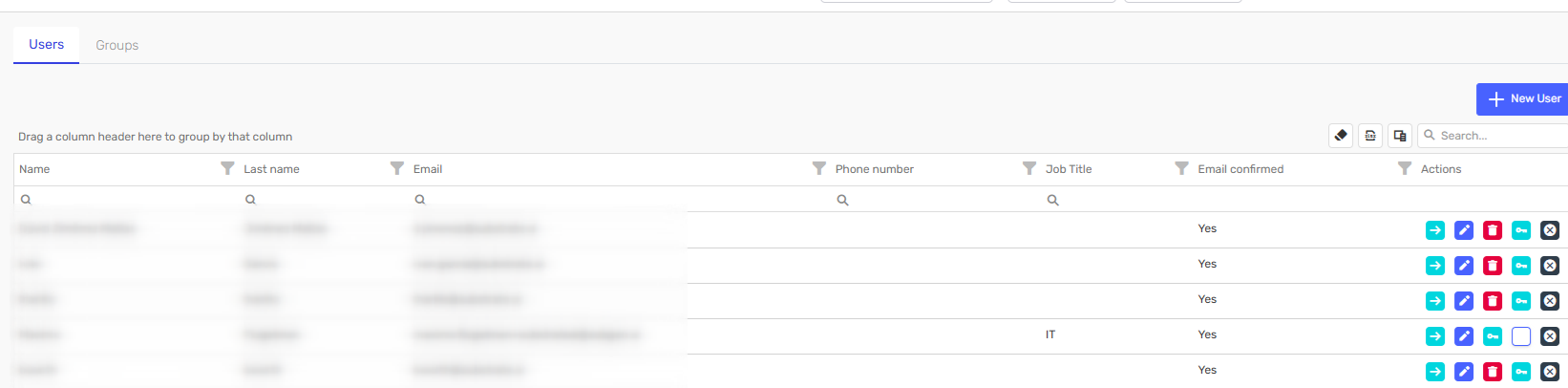
- Use the search inputs at the top of the grid to locate a user, or click New User to create one.
The grid provides a quick operational view of the users currently registered in the tenant.
Editing a User
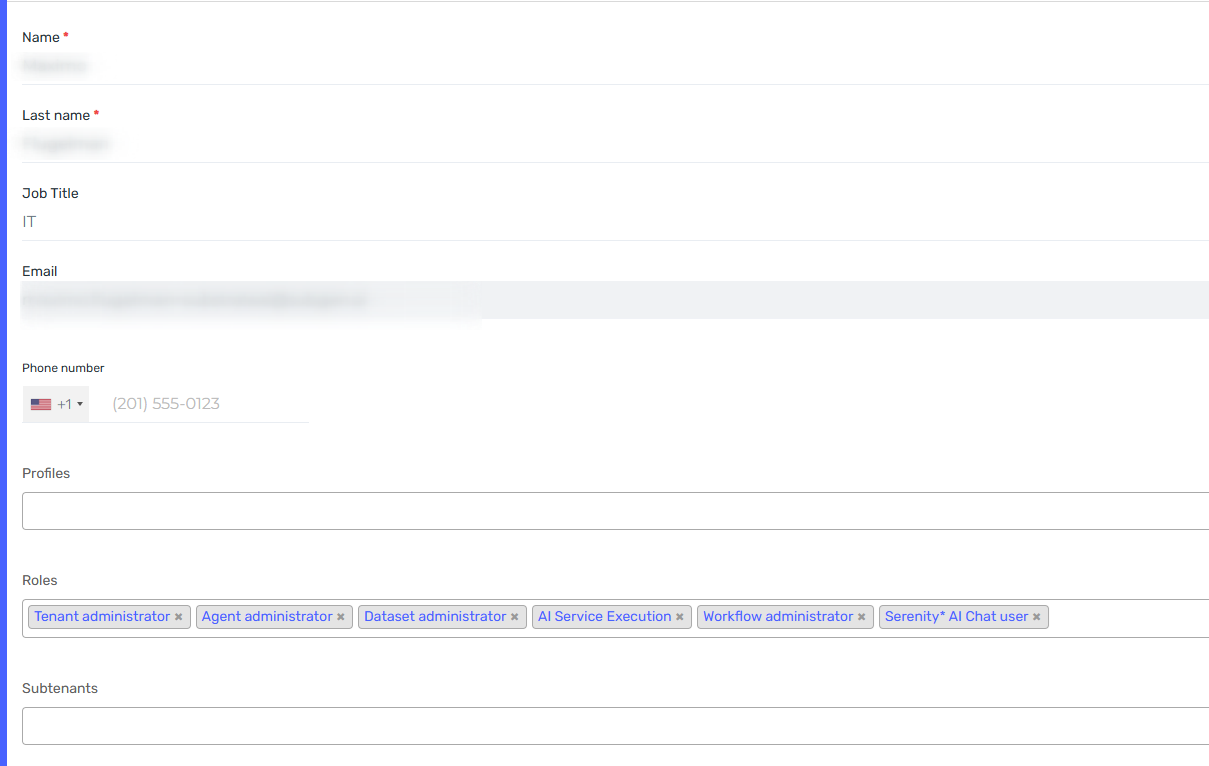
When you open a user record, the edit form lets you review and update the information associated with that account.
Typical fields include:
- Name
- Last name
- Job title
- Phone number
- Profiles
- Roles
- Subtenants
- Language
The Roles section determines which platform capabilities the user can administer or use. The Subtenants section controls the organizational scopes available to that user.
Use roles to define what a user can do, and use subtenants to define where they can do it.
Roles
Users can have one or multiple roles within the platform. Each role grants access to specific features and functionalities.
Agent
| Role | Description |
|---|---|
Agent Administrator | Grants full administrative access to agents, including configuration and management. |
Agent Execution | Allows the user to execute agents without granting full administrative permissions. |
Agent Instance User | Grants the user execution and audit access to agents. |
Agent User | Makes the user eligible for agent-specific permission assignments. By itself, this role does not grant access to any agent. |
Agent Usage Administrator | Allows the user to review agent usage and monitoring information. |
Agent Quality Studio Administrator | Grants full administrative access to Agent Quality Studio, including test plan creation and test executions. |
Sensible Data Obfuscation User | Allows the user to view obfuscated sensitive data in agent executions. |
Usage, cost, and limits
| Role | Description |
|---|---|
Cost Administrator | Allows the user to review cost information and manage billing-related configuration. |
Usage Limits Administrator | Allows the user to define and manage organization-wide usage limits. |
Scoped Limits Administrator | Allows the user to manage scoped usage limits. |
AI Chat
| Role | Description |
|---|---|
Serenity* AI Chat User | Allows the user to access and use Serenity* AI Chat. |
Serenity* AI Chat auditor | Allows the user to review Serenity* AI Chat activity, costs, and audit-related information. |
Serenity* AI Chat Configuration Administration | Grants full administrative access to Serenity* AI Chat configuration settings. |
Supporting Agent and Automation Services
| Role | Description |
|---|---|
AI ServiceExecution | Allows the user to run standalone AI services available in the platform. |
Workflow Administration | Grants full administrative access to workflows and their configuration. |
Workflow Execution | Allows the user to run workflows, including execution through the API. |
Scheduled Trigger Administrator | Grants full administrative access to scheduled triggers. |
Dataset Administrator | Grants full access to datasets, tables, and related dataset definitions. |
Fine Tuning User | Allows the user to create and manage fine-tuned models. |
Tenant and Organization administration
| Role | Description |
|---|---|
Tenant Administrator | Grants full tenant-level administrative access across platform areas. |
Subtenant Administrator | Grants full administrative access to subtenants and their configuration. |
User Administrator | Allows the user to create, update, and manage users and their assignments. |
Security Policies Administration | Allows the user to manage security and sign-in policies in the Compliance Center. |
Api Key Administrator | Allows the user to manage system-specific API keys. |
AI Connection Setting Administration | Allows the user to manage provider-related API keys in the Compliance Center. |
Security Profiles
Instead of assigning the same set of roles one by one for each user, you can group roles into a security profile and then reuse that profile across multiple users.
This helps standardize access, reduces manual configuration, and makes role management easier when several users need the same permissions.
Use the Profiles field in the user form to assign one or more existing security profiles to the user, depending on how your tenant is configured.
Best Practices
- Assign the minimum set of roles required for the user's responsibilities.
- Review role assignments regularly, especially for administrative roles.
- Prefer role-based access over sharing accounts between people.
- Review subtenant assignments together with roles to avoid broader access than intended.