Create an Agent
-
Navigate to the Serenity* Star platform.
-
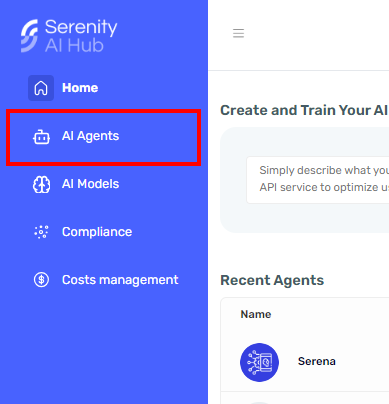
In the left sidebar, click on the "AI Agents" button.
-
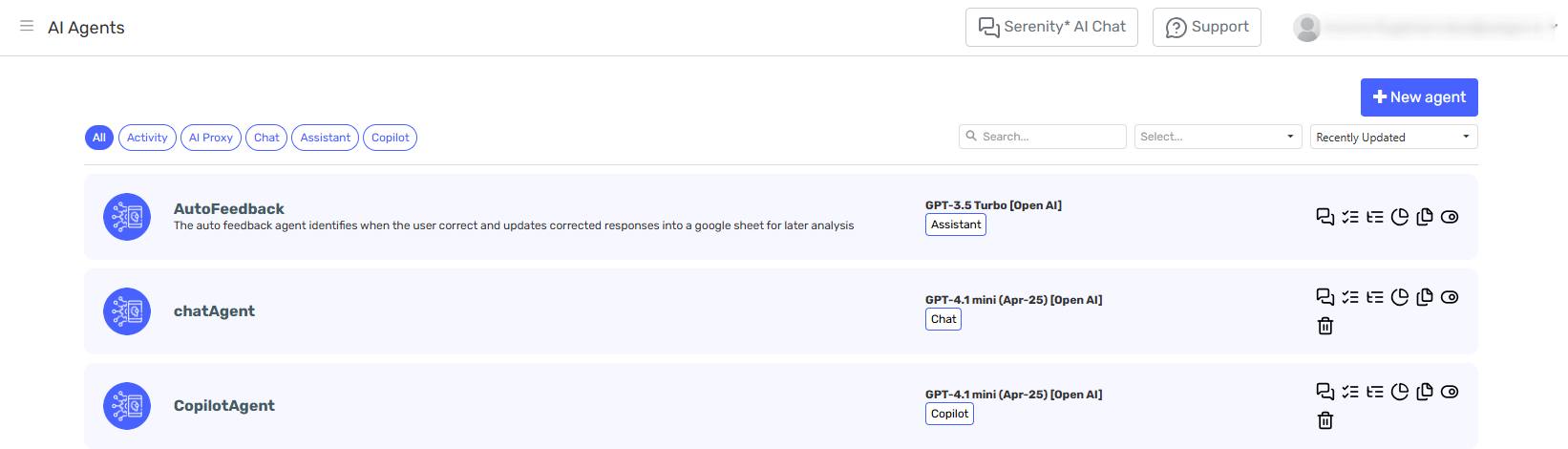
Once in the agent grid, we can filter by agent type to visualize our agents or click on "New Agent" to be redirected to the agent creator.
-
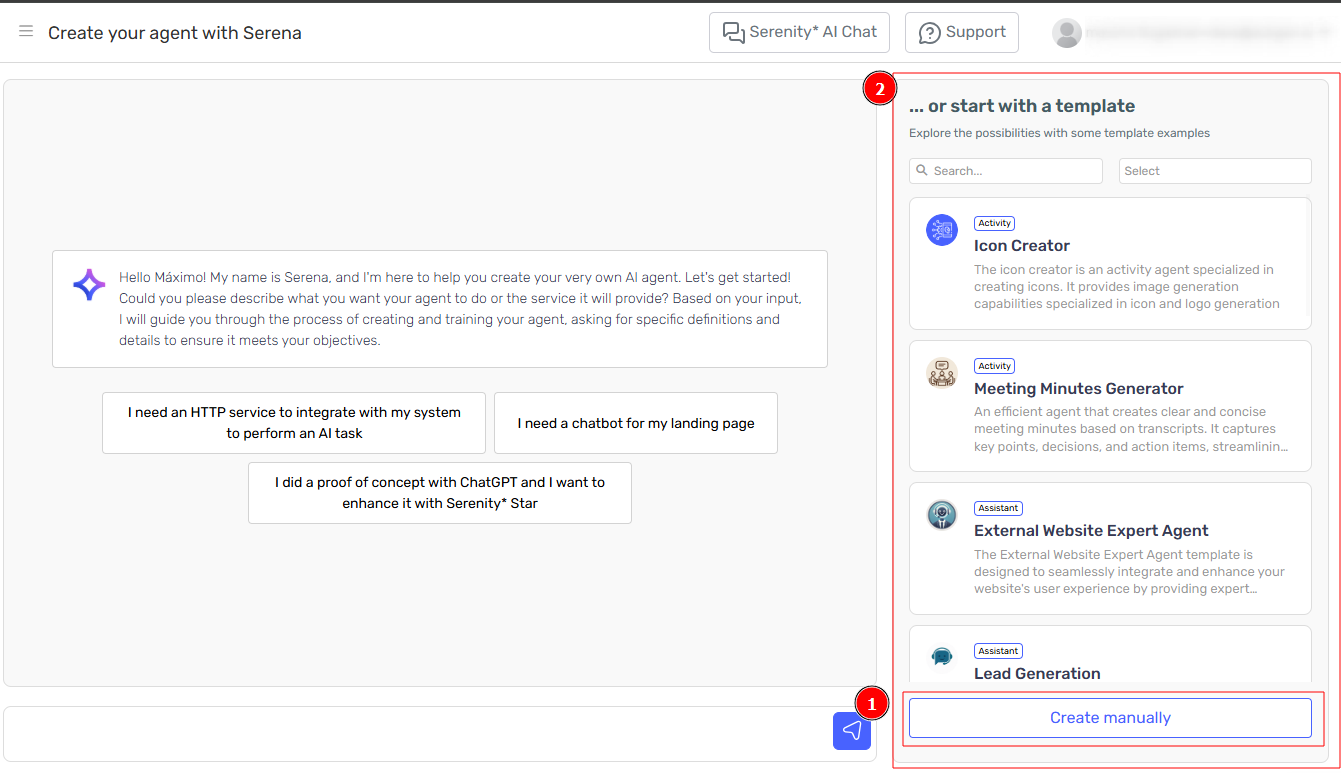
There are 2 ways to create an agent using the Agent Designer, manually or through Serena.
-
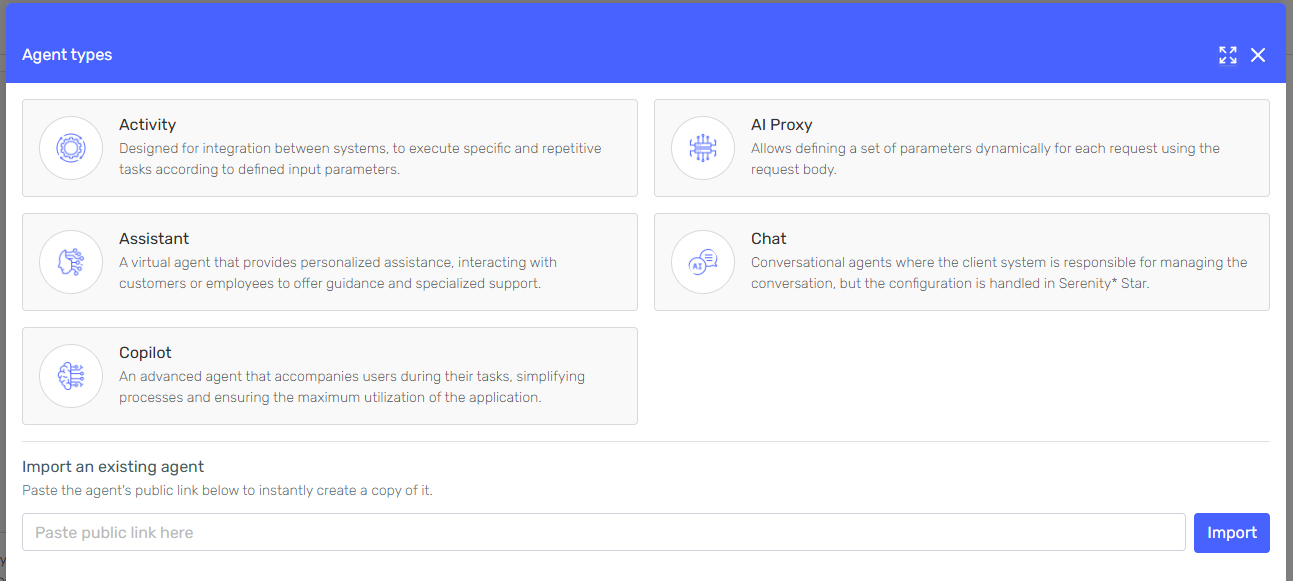
In case you want to create your agent manually, you can start from scratch by clicking on the "Create Manually" button (1), or you can start from a template instead (2). In this guide, we'll see how to create it manually from scratch. You can also import an existing agent if someone has shared its URL with you.
-
Fill in all the required information and click on "Create" to finish. You will be provided with a visible summary of the section contents and configurations to confirm everything is in order.
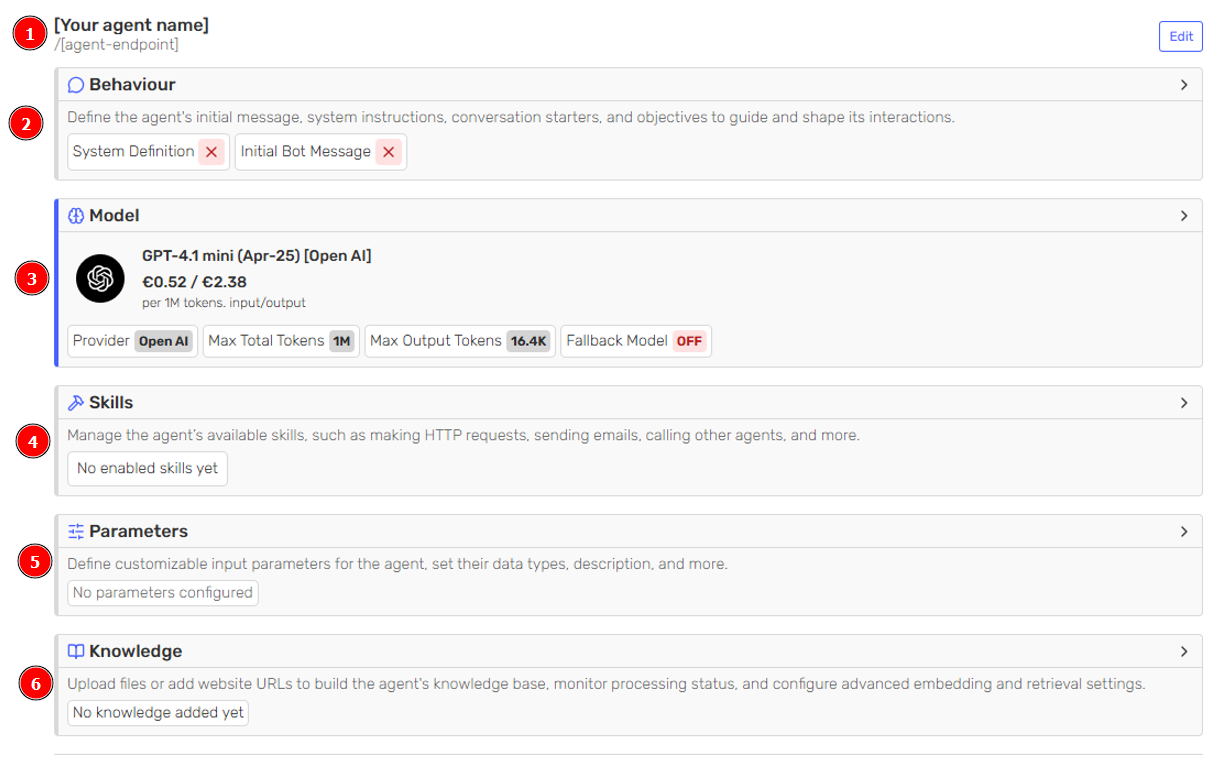
Fill in the information
You need to provide the following information, which is divided into different sections:
- General: Agent's name, endpoint and other agent's definitions.
- Instructions/Behaviour: Define the agent's initial message, system instructions, conversation starters, and objectives to guide and shape its interactions.
- Model: Information about the model that will be used, including provider, pricing, token limits, and fallback options.
- Skills: Set of capabilities to complement your agent, such as making HTTP requests, sending emails, calling other agents, and more.
- Parameters: Input parameters for the agent. Define customizable input parameters, set their data types, description, and more.
- Knowledge: Upload files or add website URLs to build the agent's knowledge base, monitor processing status, and configure advanced embedding and retrieval settings.
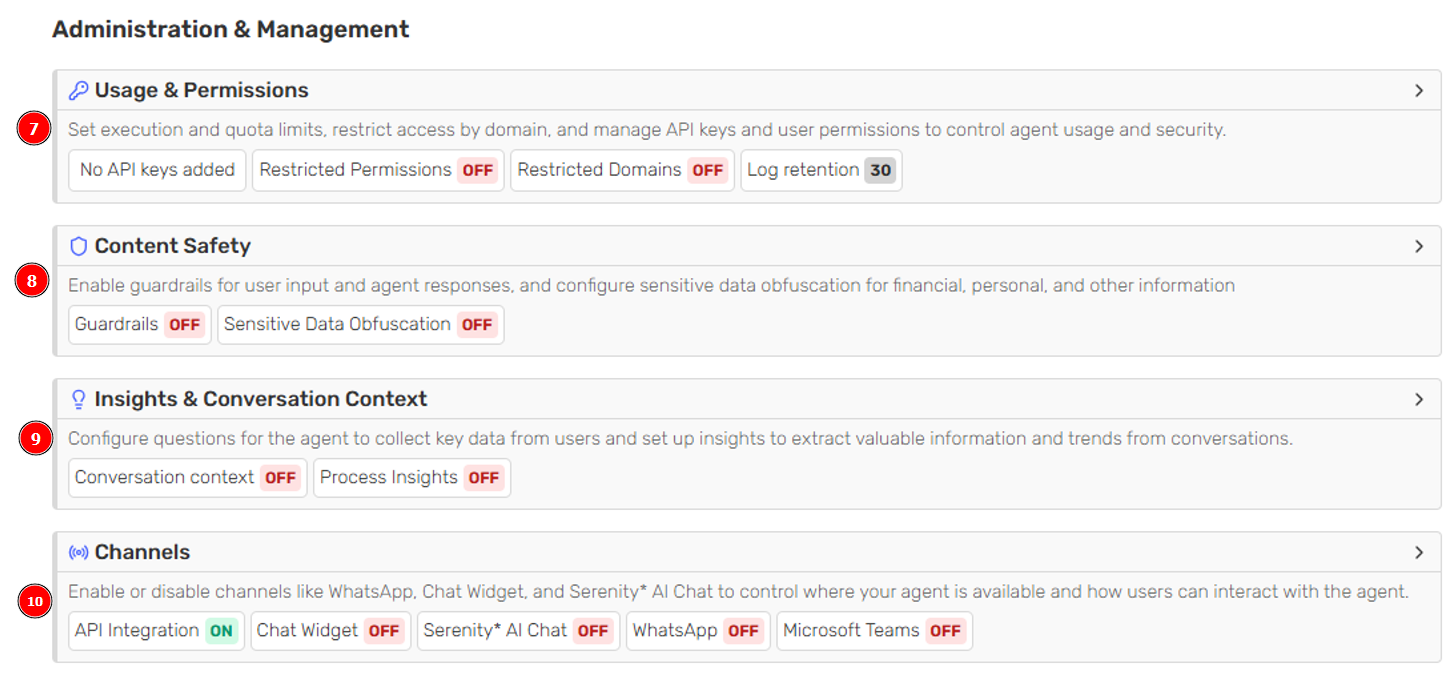
Administration & Management:
- Usage & Permissions: Set execution and usage limits, restrict access by domain, and manage API keys and user permissions to control agent usage and security.
- Content Safety: Enable Guardrails for user input and agent responses, and configure sensitive data obfuscation for financial, personal, and other information.
- Insights & Conversation Context: Configure questions for the agent to collect key data from users and set up insights to extract valuable information and trends from conversations.
- Channels: Enable or disable channels like WhatsApp, Chat Widget, and Serenity* AI Chat to control where your agent is available and how users can interact with the agent.
General
- Name: The name of the agent.
- Endpoint: The endpoint where the agent will be available.
- Avatar: Upload an image to represent the agent.
- Description: A brief description of the agent.
Instructions/Behaviour
Instructions1
- System definition: The definition of the agent.
- Output JSON format2: Define the metacontrol settings for the agent.
Behaviour2
- System Definition: Determines the base behaviour of the agent, outlining how it interprets and responds to user interactions.
- Initial Bot Message: The first message the agent sends to the user when starting a conversation.
- Conversation Starters: Suggestions provided by the agent for initiating conversations with users.
Model
- Selected model: The model that will be used by the agent. You can choose between the models available in the Serenity* Star platform.
- Fallback Model: Alternative model to use if the primary model fails or is unavailable.
The parameters listed here are for reference only and may vary depending on the model and provider.
- Max Total Tokens: The maximum total number of tokens allowed for the model.
- Max Output Tokens: The maximum number of tokens that the model can generate in its response.
- Temperature: Controls randomness in the model's output. Higher values produce more creative responses, while lower values produce more deterministic outputs.
- Top P: Sets a threshold for the cumulative probability of the model's output. Higher values generate more diverse outputs, while lower values generate more conservative or predictable outputs.
- Frequency Penalty: Value between -2.0 and 2.0 that impacts how the model penalizes new tokens based on their existing frequency in the text.
- Presence Penalty: Value between -2.0 and 2.0 that impacts how the model penalizes new tokens based on their presence in the text so far.
- Logit BIAS3: Value between -100 and 100 to modify the likelihood of specified tokens appearing in the completion.
- Stop Sequences3: Sequences where the agent will stop generating further tokens.
Skills
Define skills to extend the capabilities of your agent and enable it to perform specific actions such as making HTTP requests, sending emails, calling other agents, accessing databases, and integrating with external services.
Parameters
- Mandatory user identification through the userIdentifier parameter: Requires the user to send an identifier for the message.
- Mandatory group identification through the groupIdentifier parameter4: Requires the user to send an identifier for the message.
- Input parameters: Define customizable input parameters to modify the system definition dynamically. To learn more about input parameters, check the Input Parameters page.
Knowledge
Improve your agent’s capabilities by adding files, website URLs, or existing datasets to build its knowledge base. This allows the agent to answer questions using your own content through retrieval‑augmented generation (RAG) and other advanced retrieval settings.
-
Website: Extract knowledge from web pages by providing their URLs, so the agent can read and use that online content when formulating answers.
-
Files: Upload documents such as PDF, text, or other supported formats so the agent can index and search their contents during conversations.
-
Datasets: Connect existing structured datasets to your agent, enabling it to retrieve data as part of its responses.
Usage & Permissions
- API Keys: Generate and manage API keys for programmatic access to the agent.
- Restricted Permissions: Define specific permissions for different users or user groups.
- Restricted Domains: Specify which domains the agent can interact with. If no domains are defined, the agent can interact with any domain.
- Execution Limits: Set usage limits to control agent usage and prevent overuse.
- Log Retention: Configure how long conversation logs and interaction data are stored.
Content Safety
- Guardrails: Enable input and output guardrails to prevent the agent from processing or generating inappropriate, harmful, or off-topic content.
- Sensitive Data Obfuscation: Configure automatic detection and obfuscation of sensitive information such as financial data, personally identifiable information (PII), and other confidential content to ensure compliance and data protection.
Insights & Conversation Context
- Conversation Context: Configure the agent to collect and maintain key contextual information from users throughout conversations to provide more personalized and relevant responses.
- Process Insights: Set up automated extraction of valuable insights, patterns, and trends from user interactions to inform business decisions and improve agent performance over time.
Channels
Channels are not versionable; any changes made will impact the agent and all its versions.
Enable or disable communication channels to control where your agent is deployed and how users can interact with it:
- API Integration: Code snippets to interact with this agent using Serenity* API.
- Chat Widget: Allows you to easily customize the Chat Widget to better align with your brand and personal preferences.
- Serenity AI Chat*: Enable this agent to be used on Serenity* AI Chat.
- WhatsApp: Configure this agent to be used in WhatsApp.
- Microsoft Teams (Preview): Enable this agent to be used on Microsoft Teams.
- Discord: Follow the instructions to connect this agent to Discord.